Signing in
Everyone signs in the same way: you enter your email and type the 6-digit code sent to it. Nothing else to remember. Some people also have an authenticator app as a second step.
Sign in with an email code
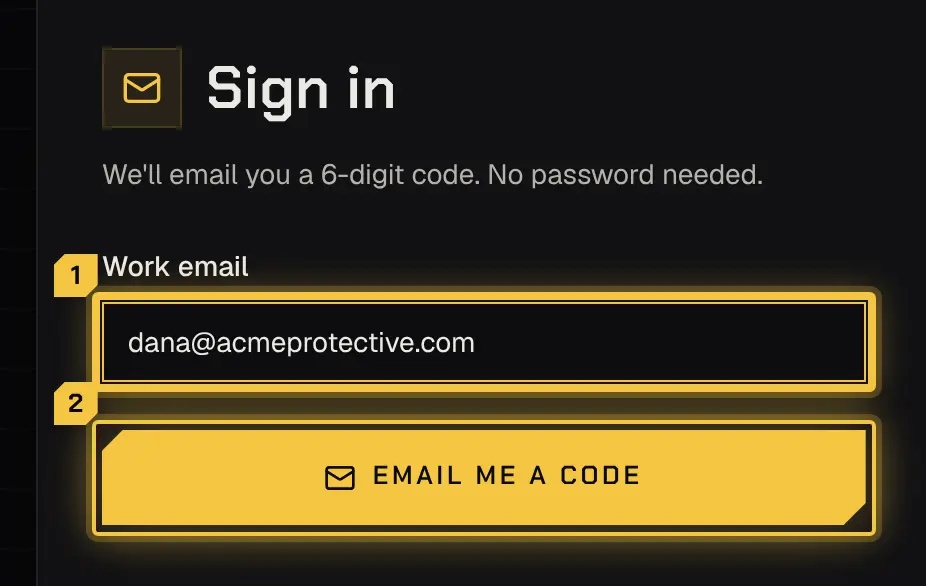
Section titled “Sign in with an email code”- On the sign-in page, enter your address under Work email and select Email me a code.
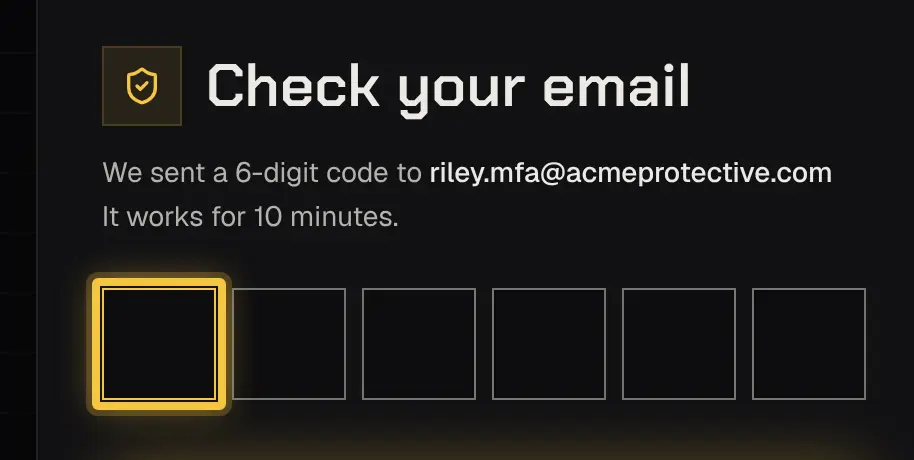
- Open the email and type the code into 6-digit code. It works for a short time, once, and checks itself once all six digits are in, or select Verify and sign in.
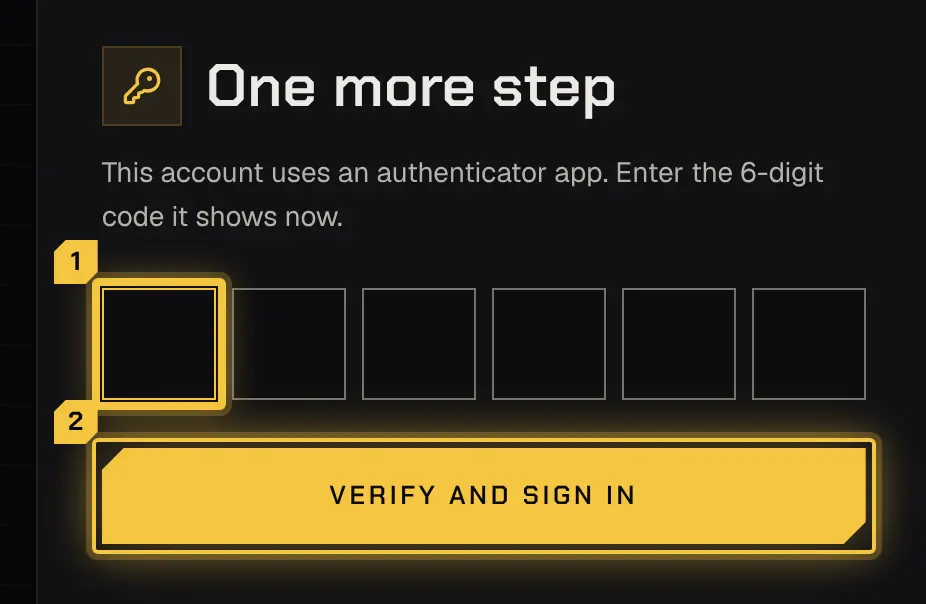
- If your account uses an authenticator app, enter the code it shows (below).
You land back where you were if your session had ended mid-task.
No email? Check spam or junk, and that it’s the address your firm uses for you. Select Send a new code (there’s a short wait between codes). Only the newest code works, so use the latest email.
Wrong code. The page says so, and how many tries are left once they’re low. After too many wrong tries, or once the code is too old, it stops working and the button becomes Send a new code (wrong_code, code_expired). After many wrong codes, code sign-in for your address pauses for a while and you’re told by email (locked); the page says when you can try again.
Sign-in is paused. If too many codes are asked for one address, sign-in pauses and the page says when you can try again (too_many_requests, locked). Wait until then, or contact support.
Signed out. Sessions end after a while to keep your account safe, and you’re also signed out when someone changes your role. Sign in again to carry on.
The authenticator step
Section titled “The authenticator step”An authenticator app (Google Authenticator, Authy or similar) adds a second step after the email code. It’s optional unless the owner requires it for all staff, in Team and roles.
- You have one: after the email code, One more step asks for the 6-digit code your app shows. Enter it and select Verify and sign in.
- Your firm requires one and you don’t have one yet: Set up an authenticator shows a QR code (or a link on a phone, and the key to copy). Add it to your app, enter the code it shows and select Turn on and sign in.
Too many wrong authenticator codes end the attempt, and you start again from your email. Select Use a different email to start over at any time.
Reset your authenticator
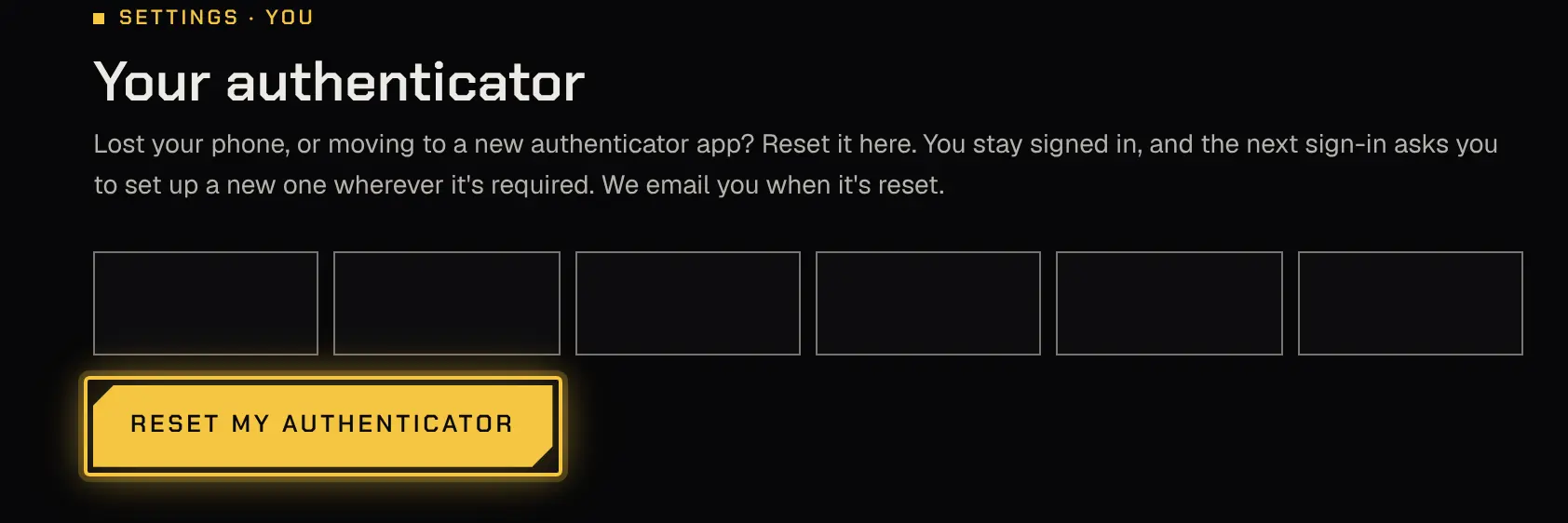
Section titled “Reset your authenticator”Lost your phone, or moving to a new app? Reset it yourself while you’re signed in:
- Go to Settings, then Your authenticator (under You).
- Enter the current code from your authenticator app and select Reset my authenticator.
- Remove the old entry from your app.
Too many wrong codes here sign you out, and the sign-in page says that’s why; sign in again to carry on. Otherwise you stay signed in. At your next sign-in you set up a new one if your firm requires it; otherwise you sign in with an email code alone until you add one. You’re emailed whenever your authenticator is reset. If the page says you don’t have an authenticator to reset, you sign in with an email code only.
Can’t get a code from it at all? An owner or admin can reset it for you from Team and roles. If you’re the owner, or you’re on more than one firm’s staff, contact support. Support acts only after an owner or admin of your firm confirms it from inside their signed-in console. If you’re the owner and can’t sign in at all, support checks the email address on file and calls you back on the phone number on file before anything changes.
Shyld support never asks for your sign-in code or your authenticator’s code, by email, phone or message; anyone who does isn’t Shyld support.
Sign out everywhere
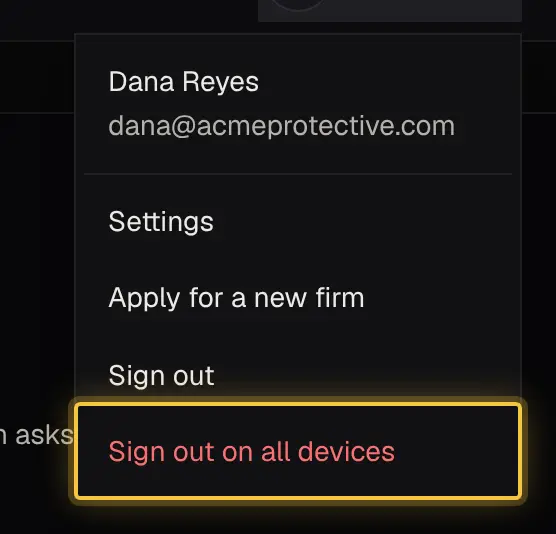
Section titled “Sign out everywhere”To sign out of every device at once, use Sign out on all devices in your account menu. Your other devices go to the sign-in page, which says you were signed out on all your devices. An owner or admin can also sign a team member out everywhere, for example after a lost phone; their sign-in page then says their team signed them out. Someone removed from the team is told so when they next reach the sign-in page.
Who can do what
Section titled “Who can do what”Everyone signs in the same way, whatever their role, so there’s no table here. Who can require an authenticator, or reset someone else’s, is on Team and roles.
Powered by Shyld