Rebuilding your existing website
If you already have a website, you can rebuild it here and point your address at it, so the request form, your services and your legal pages are part of it. Open Settings, then Brand and site, then Website. Keep your current site open in another window as you go.
Start from the closest look
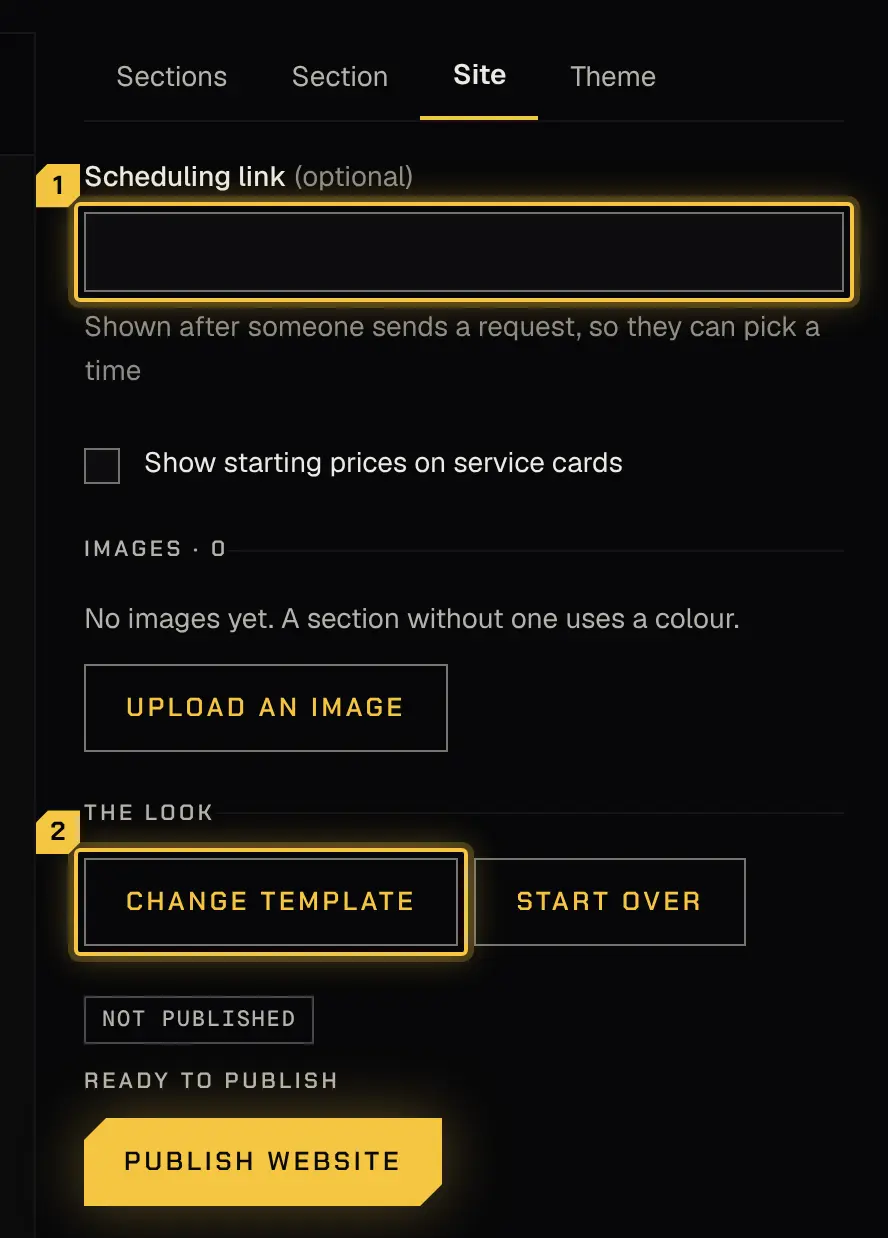
Section titled “Start from the closest look”On the Site tab, select Change template and pick the starting look closest to your site. Every word and picture you’ve added stays; only the look changes. Then upload your photos under Images, so your sections can use them.
Put the sections in your site’s order
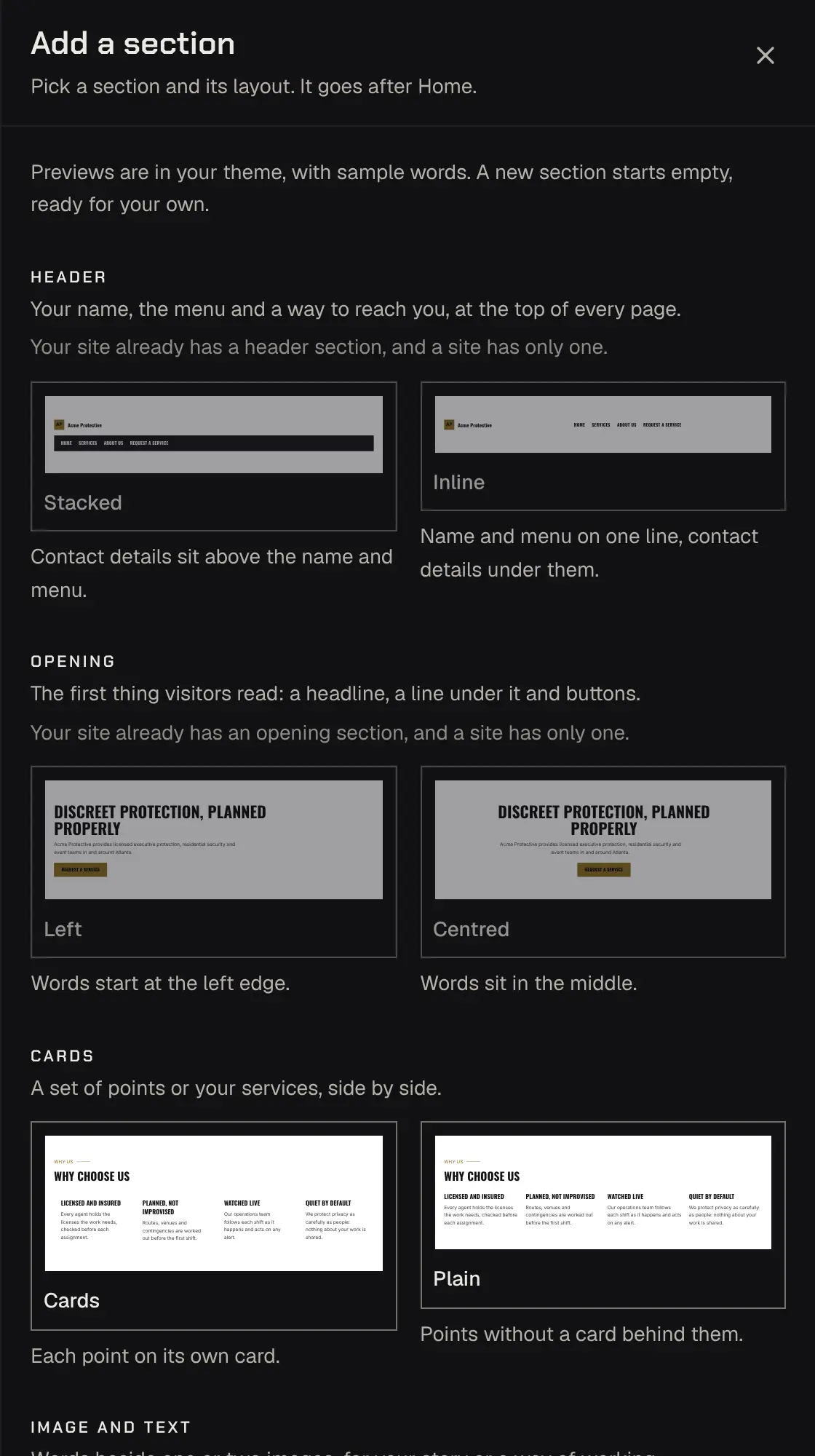
Section titled “Put the sections in your site’s order”Go down your current site from the top. For each part, find the matching section in the Sections tab, or Add a section and pick the kind and layout that fits: an opening with a photo, image and text side by side, a band with one button, cards, questions and answers, what clients say, a gallery, credentials or contact. Move each one into place, and hide or delete what you don’t need.
Copy the words and match the style
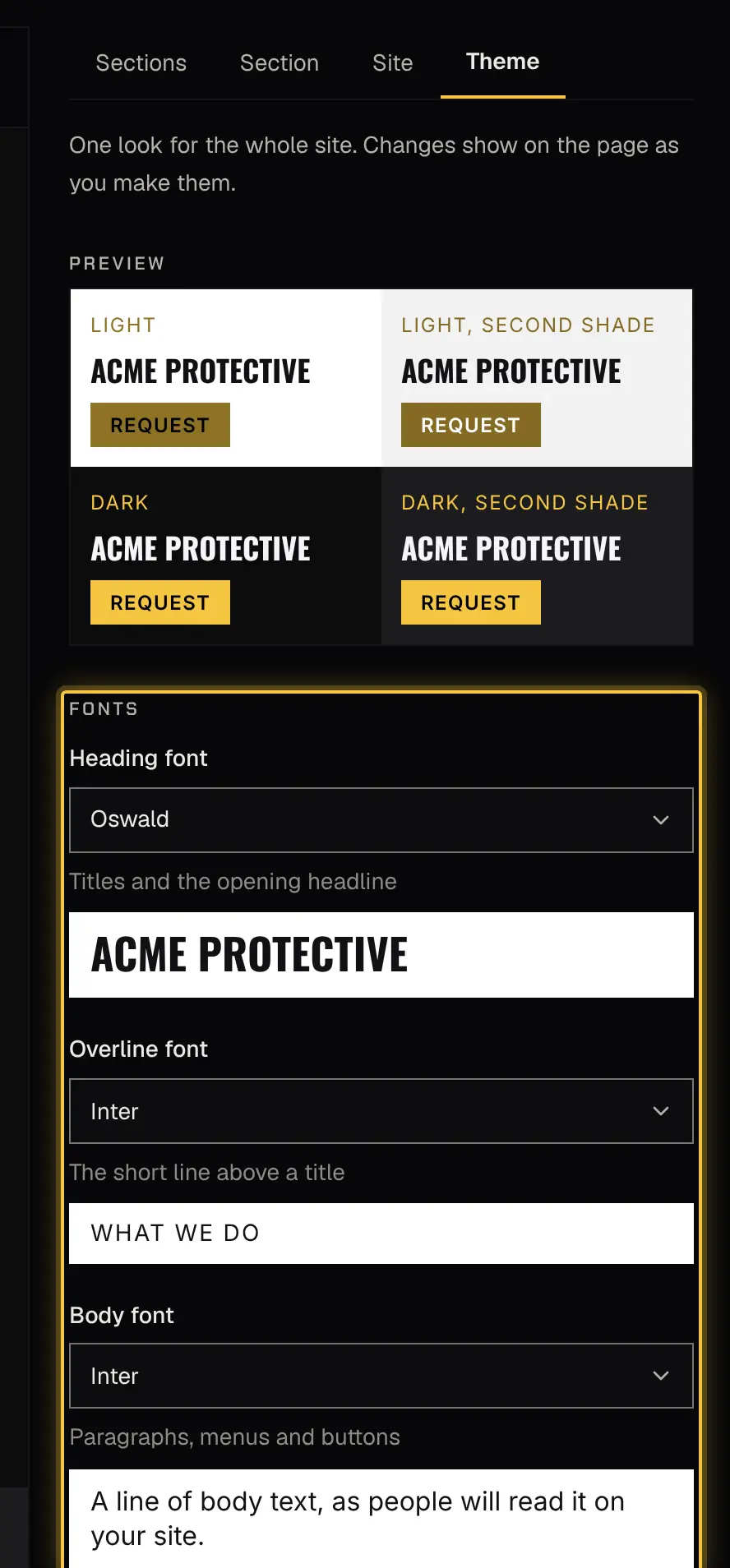
Section titled “Copy the words and match the style”Click each heading and line on the page and type your own words, or use the Section tab’s Content form. Under Style, give each section its background, layout and spacing. In the Theme tab, choose the fonts and section colours closest to your site’s.
Check it side by side, then publish
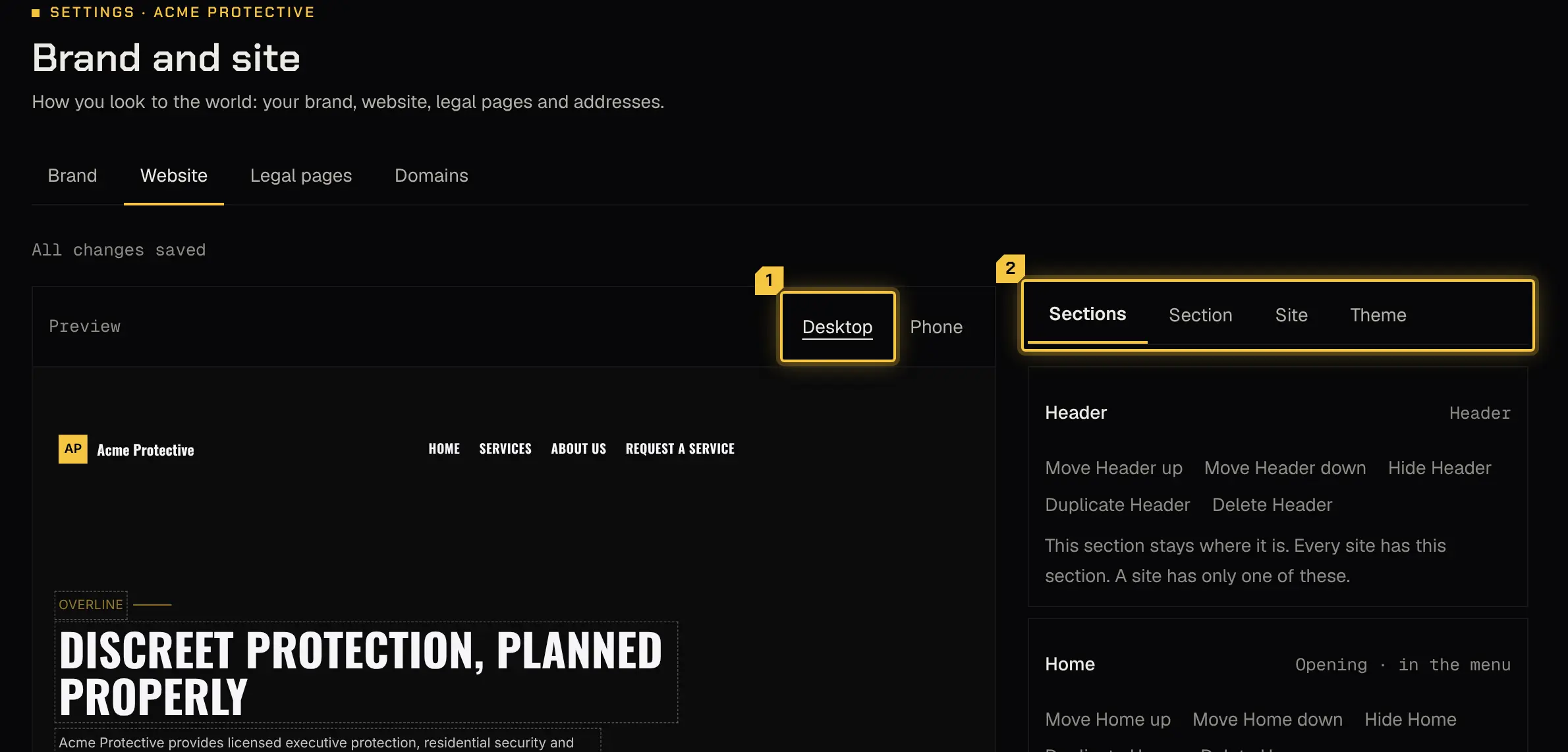
Section titled “Check it side by side, then publish”Put your current site and the editor’s page next to each other, first on Desktop, then on Phone, and work down both. When Ready to publish shows, select Publish website. Then point your own domain at it from the Domains tab, or keep your old site and link to your request form from it.
Powered by Shyld