Money settings
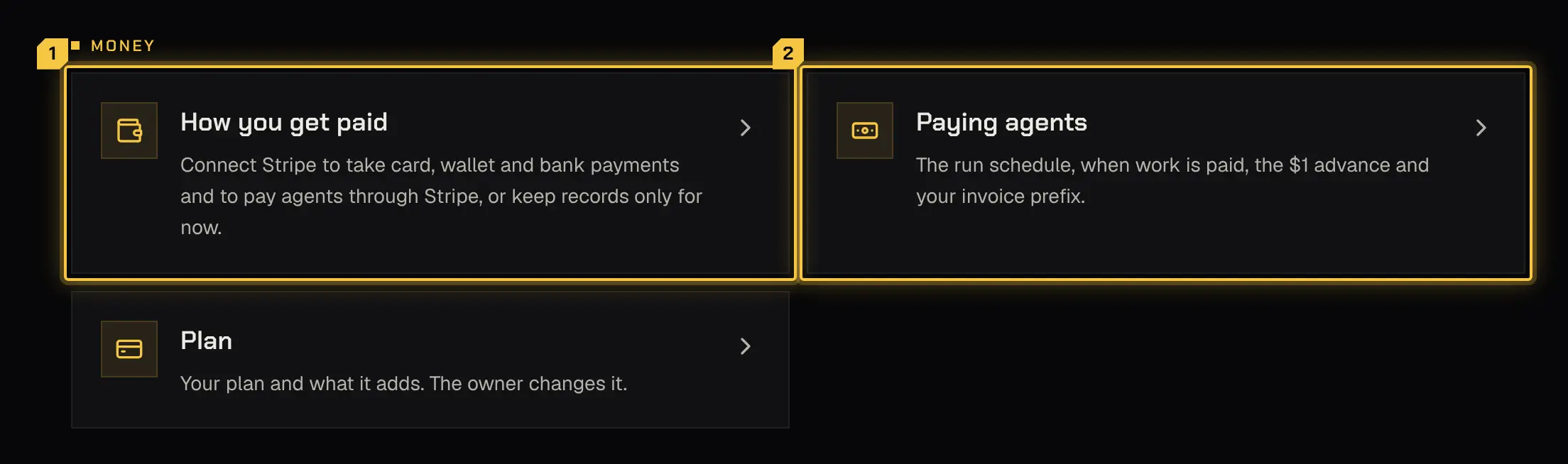
Settings has a Money group. How you get paid opens the payments step of setup, and Paying agents holds the payout run settings.
How you get paid
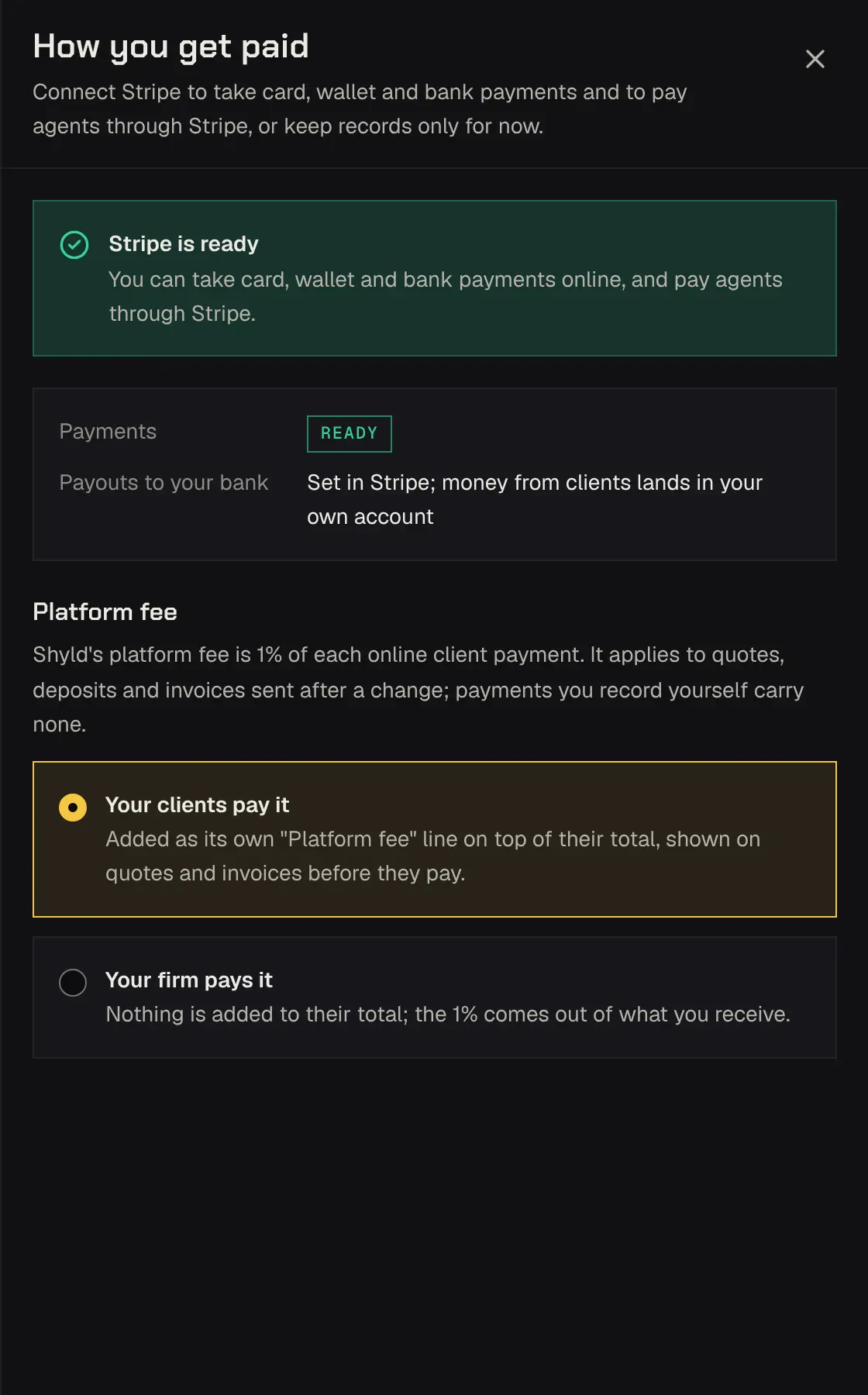
Section titled “How you get paid”Open Settings, then How you get paid. The owner makes this choice; admins see what was chosen.
- Connect Stripe to take card, wallet and bank payments from your clients and to pay your agents through Stripe. You continue on Stripe’s secure pages, and the step shows whether Stripe is ready, checking your details, or needs more information.
- Records only for now keeps every payment outside the app: invoices show how to pay you, and you record each payment as it arrives. You can connect Stripe any time.
When a client pays from a new bank account, Stripe’s secure screen for linking their bank shows Shyld’s name, not your firm’s, and no setting changes that. The money is still yours: the bank authorisation, their statement, the receipt, the invoice and the portal all show your name, and the payment goes to your Stripe account.
Linking the bank that pays your agents’ invoices, and the authorisation to pay from it, is the setup step How you pay agents. Changing that bank later from Settings is coming soon.
The platform fee
Section titled “The platform fee”Every payment your clients make online, by card, wallet or bank, carries a platform fee of 1% of the amount paid. That’s the platform’s charge for taking payments online. There’s no fixed part and no cap.
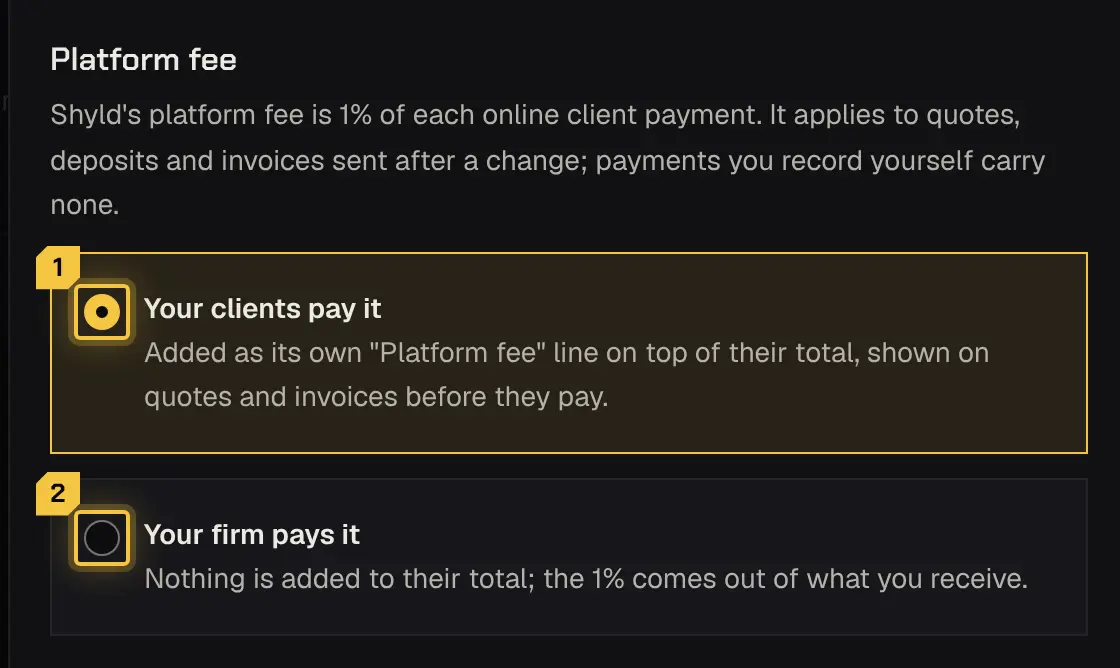
The owner chooses who pays it. Open Settings, then How you get paid, and under Platform fee pick one:
- Your clients pay it (the default): it’s added as its own “Platform fee” line on top of their total, and they see it on quotes and invoices before they pay.
- Your firm pays it: nothing is added to their total, and the 1% comes out of what you receive.
The choice is saved as soon as you pick it. It applies to quotes, deposits and invoices sent after the change; anything already sent keeps the choice it went out with. Admins see who pays it but can’t change it.
Where you see it:
- Quotes: the preview shows Platform fee (1%) under the total, marked Estimated, because it’s only charged on what’s paid online. When your clients pay it, the line says what they pay online in all, and the deposit shows the fee it adds and its sum.
- Invoices: the totals show Platform fee (1%) with who pays it and, when your clients pay it, what they pay online in all. The PDF shows the amount due and, below it, the fee and the amount due if paid online. See Invoices.
- Payments: an online payment’s row shows Stripe’s fee and, when your clients pay it, the platform fee they paid; when your firm pays it, your fees in all, the platform fee included.
More about the fee:
- Stripe’s own processing fee is yours, taken by Stripe in your Stripe account on the whole amount charged.
- Not charged on payments you record by hand (check, transfer or cash), or on paying your agents.
- Refunds return the platform fee in proportion. Stripe doesn’t return its processing fee.
- Shared bookings: the fee is 1% of each payer’s own online payments.
Paying agents
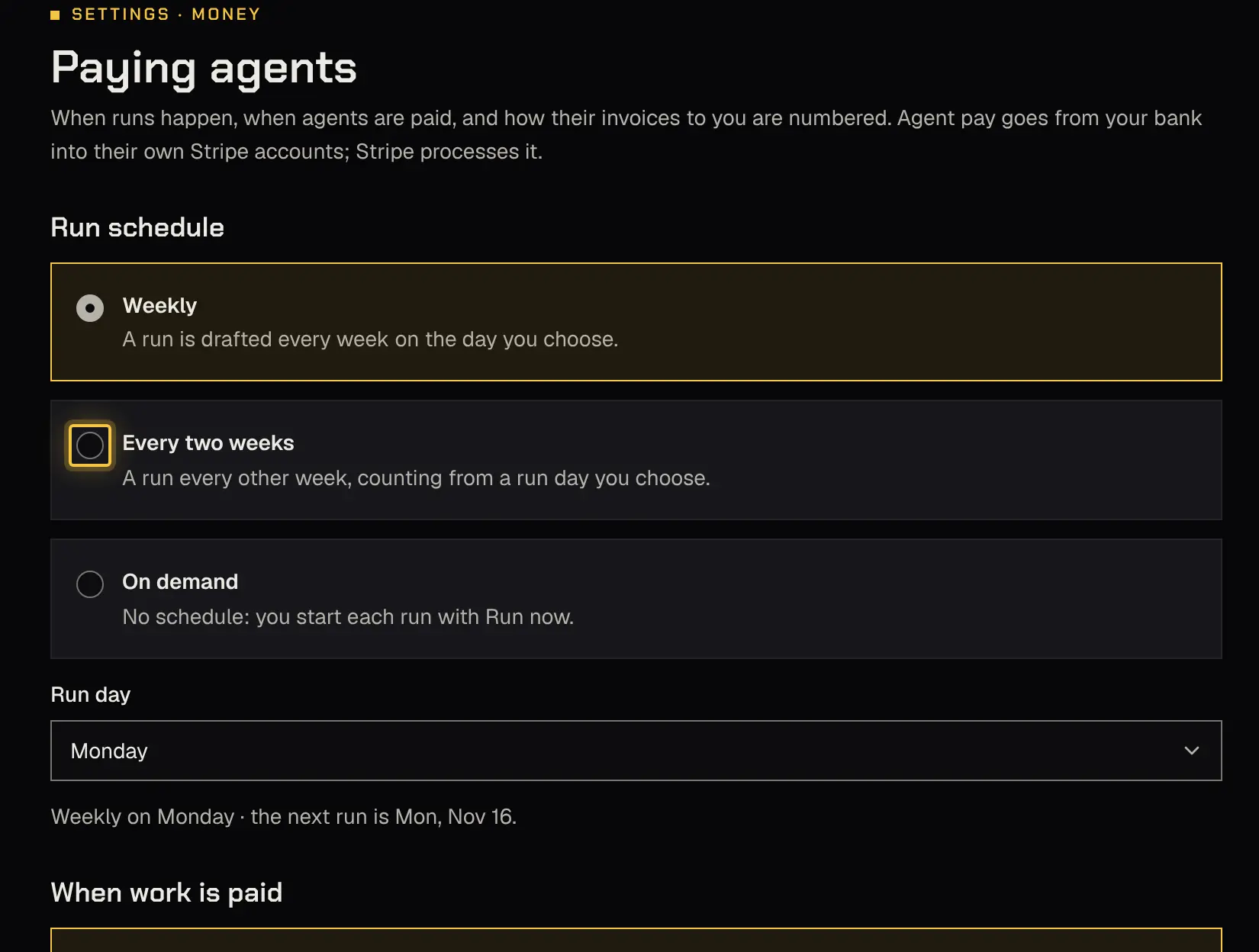
Section titled “Paying ”Open Settings, then Paying agents. Make your changes and select Save.
Run schedule
Section titled “Run schedule”- Weekly: a run is drafted every week on the Run day you choose (Monday by default).
- Every two weeks: choose the Run day and the First run day, a date on that weekday. Runs follow every two weeks from it.
- On demand: no schedule. You start each run with Run now on the Payout runs tab.
The page shows the next run day as you change it.
When work is paid
Section titled “When work is paid”- Once the time is approved (the default): approved time goes into the next run.
- Once the client has paid: pay for a shift waits until the invoice carrying it is paid and cleared. Payments you record count. Pay on a booking marked no charge is released when it completes.
Until you choose, work is paid once the time is approved.
Advance on pay
Section titled “Advance on pay”Tick Send a $1 advance when agent pay is set up to send $1.00 into each person’s Stripe account once their pay setup is done. It starts Stripe’s first-payout hold early, so their first real pay usually arrives on time, and it tests your bank and their account. If it settles, it comes off their first invoice to you. It’s sent once per person, and a failed one isn’t retried or deducted.
Who approves runs
Section titled “Who approves runs”Only the owner sees this. Tick Let admins approve payout runs to let admins approve, hold and discard runs, pay an invoice again, and change these settings.
Invoice numbers
Section titled “Invoice numbers”Your invoice prefix (2 to 8 letters or numbers) goes on your invoices (for example ACME-0001) and on your agents’ invoices to you (their initials, then the prefix and number). It can’t change once an invoice carries it.
Who can do what
Section titled “Who can do what”Paying agents is read only for an admin the owner hasn’t allowed to approve runs, and only the owner chooses how you get paid and links the bank that pays agent invoices.
| Area | Owner | Admin | Dispatcher | Viewer |
|---|---|---|---|---|
| Money settings | Changes | Changes | No | No |
| Approving payout runs | Changes | If the owner allows it | No | No |
| The bank that pays agent invoices | Changes | No | No | No |
| Client payment methods | Changes | Changes | Reads | No |
Powered by Shyld