Getting started
Signing in
Section titled “Signing in”The portal signs you in with a code sent by email, never anything to remember.
- Enter your email address and choose to get a code.
- Open the latest email and type its 6-digit code.
- The first time, accept the Terms of Service and Privacy Policy.
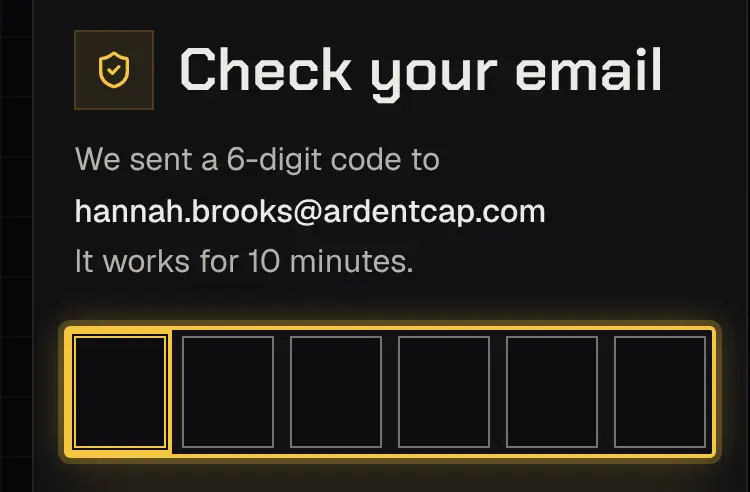
Some accounts also ask for a code from an authenticator app (“One more step”).
After several wrong codes, signing in pauses for a while and you’re told by email; the page says when you can try again. Shyld support never asks for your sign-in code or your authenticator’s code, by email, phone or message; anyone who does isn’t Shyld support. The portal never says whether an address is on file.
New to your security provider? Choose Request a service on the sign-in page.
To sign out of every phone and browser at once, use Sign out of every device at the foot of every page.
Your role
Section titled “Your role”Each person on an account has a role, and your security provider or a manager on your account can tick each permission on or off:
| Role | Can usually |
|---|---|
| Manager | Everything, including managing colleagues |
| Assistant | Everything except managing colleagues |
| Billing | See and pay invoices |
| Principal | See their own bookings, the live map on them, and rate them |
You see prices only if you can request, approve, see invoices or pay.
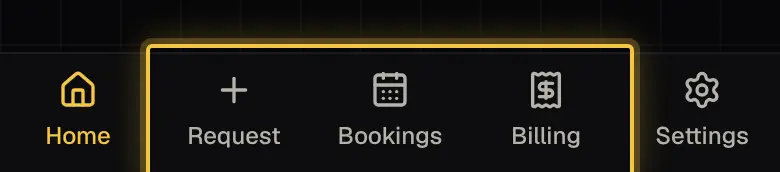
What shows in the menu follows your permissions: Request needs Request bookings, Bookings needs to see or request bookings, Billing needs See invoices and receipts, and Shared appears once someone adds you to their booking.
Contacting your security provider
Section titled “Contacting your security provider”Every page of the portal ends with your security provider’s phone number and email address.
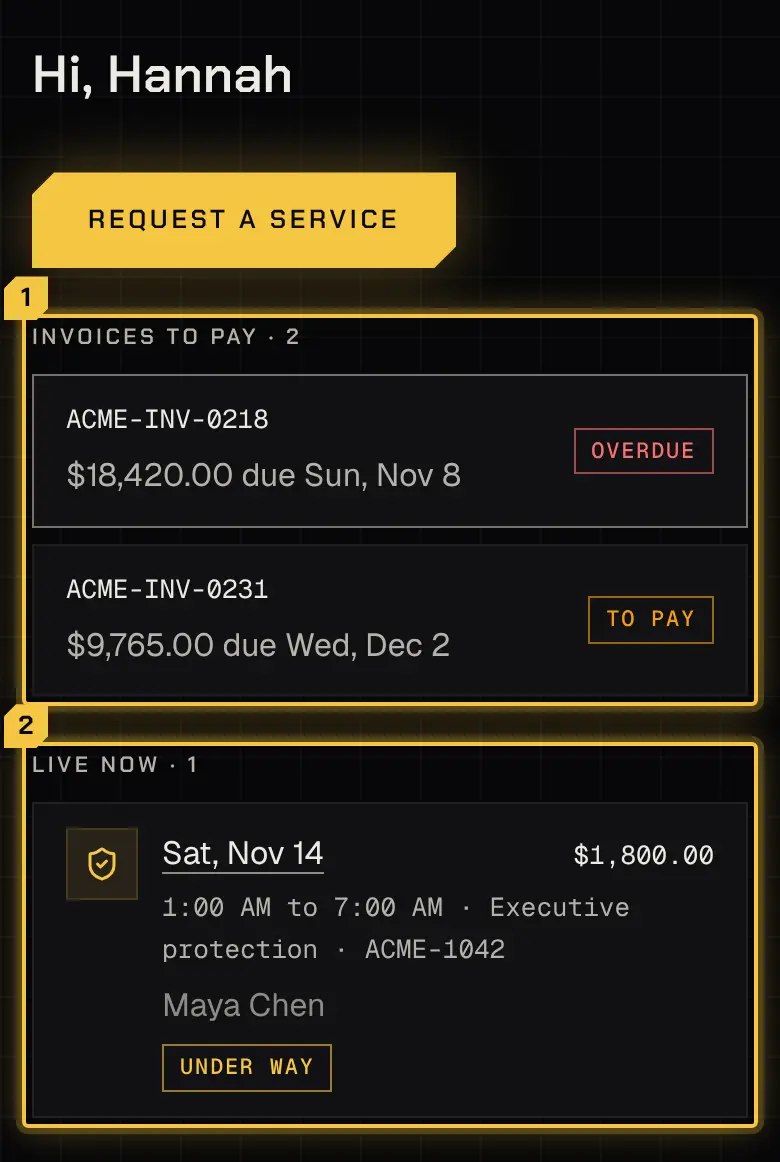
Home lists what’s Waiting on you first (quotes, deposits, changes and extra time to answer), then what waits on your colleagues, what’s live now, today’s and what’s coming up.
More than one account
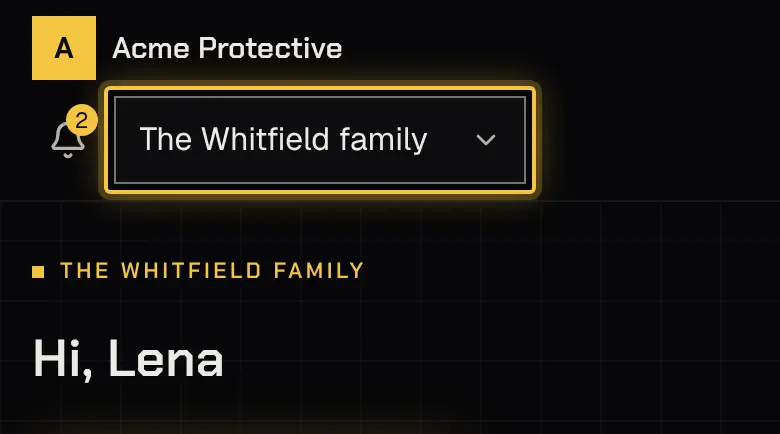
Section titled “More than one account”If you’re a contact on more than one account with the same security provider, a switcher at the top chooses the account. Everything you see then belongs to that account; opening a booking from another one asks you to switch first.
Settings
Section titled “Settings”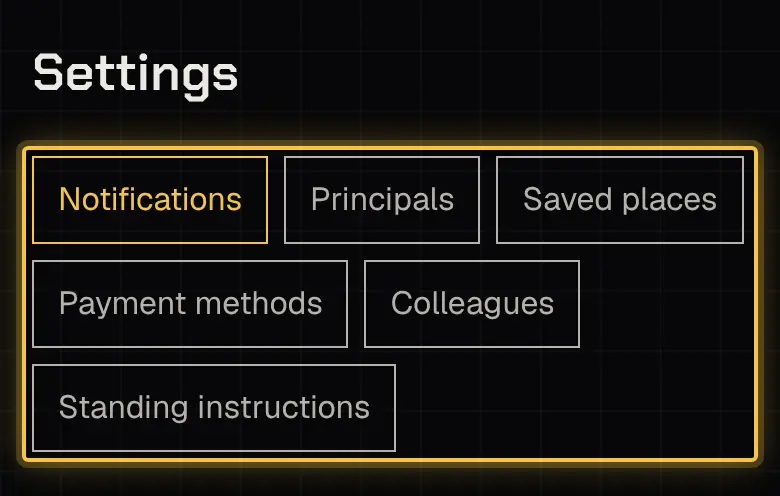
| Tab | Who sees it |
|---|---|
| Notifications | Everyone: choose which emails you get. Sign-in codes always come by email. |
| Principals | Those who manage principals |
| Saved places | Those who request bookings |
| Payment methods | Those who pay invoices |
| Colleagues | Managers: invite a colleague, change permissions, remove someone |
| Standing instructions | Those who see principals; those who manage all of them change them |
Adding a colleague
Section titled “Adding a colleague”Managers invite a colleague from Settings › Colleagues. The same tab is where a Manager changes a colleague’s permissions or removes them.
Powered by Shyld