Getting started
Signing in
Section titled “Signing in”You sign in with your email address. The app emails you a six-digit code; type it in and you’re in. If you’ve turned on an authenticator app, it asks for that code too. Shyld support never asks for your sign-in code or your authenticator’s code, by email, phone or message; anyone who does isn’t Shyld support.
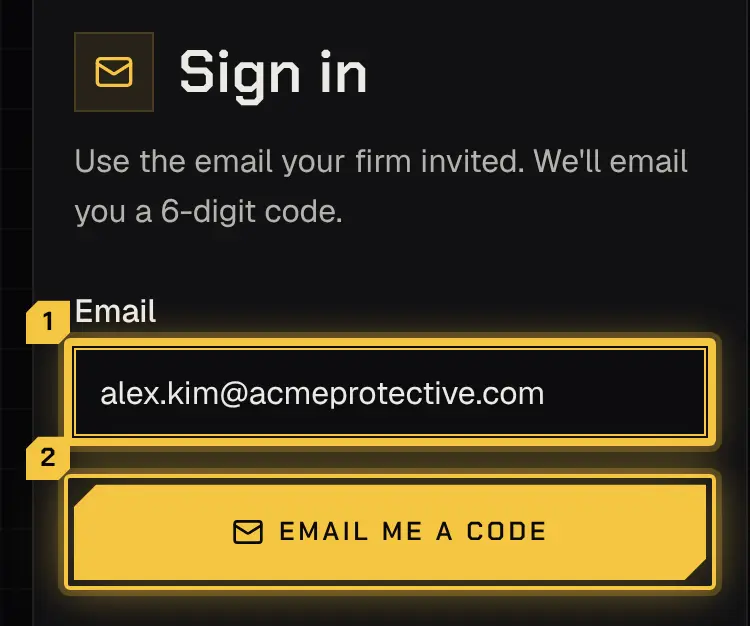
The first time you sign in, you read and accept the platform’s Terms of Service and Privacy Policy. Nothing of any firm shows until you have.
Joining a firm
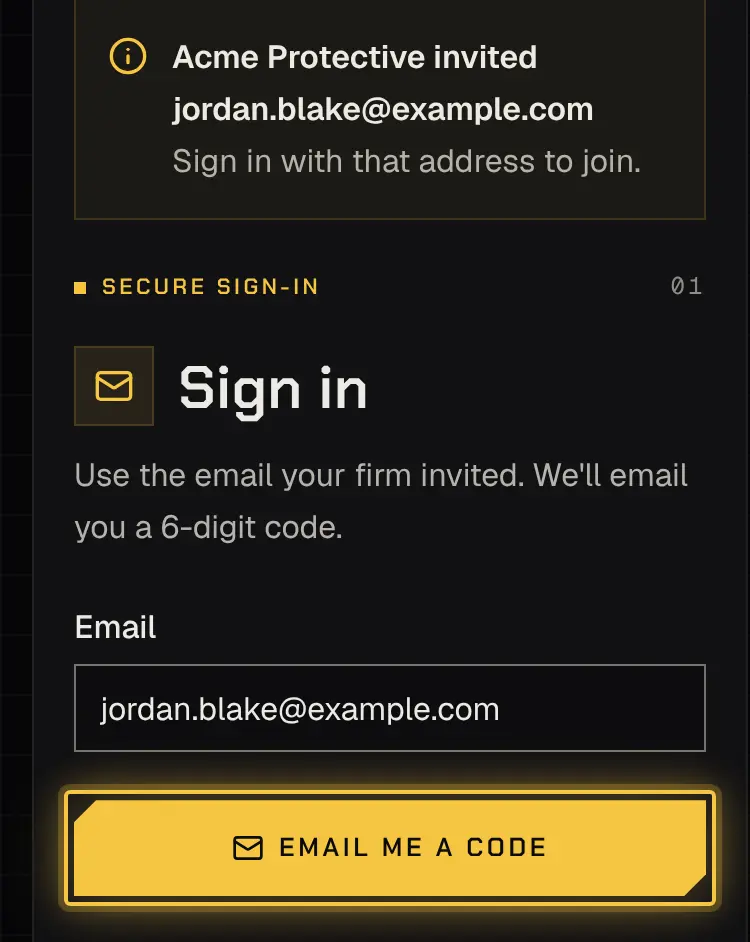
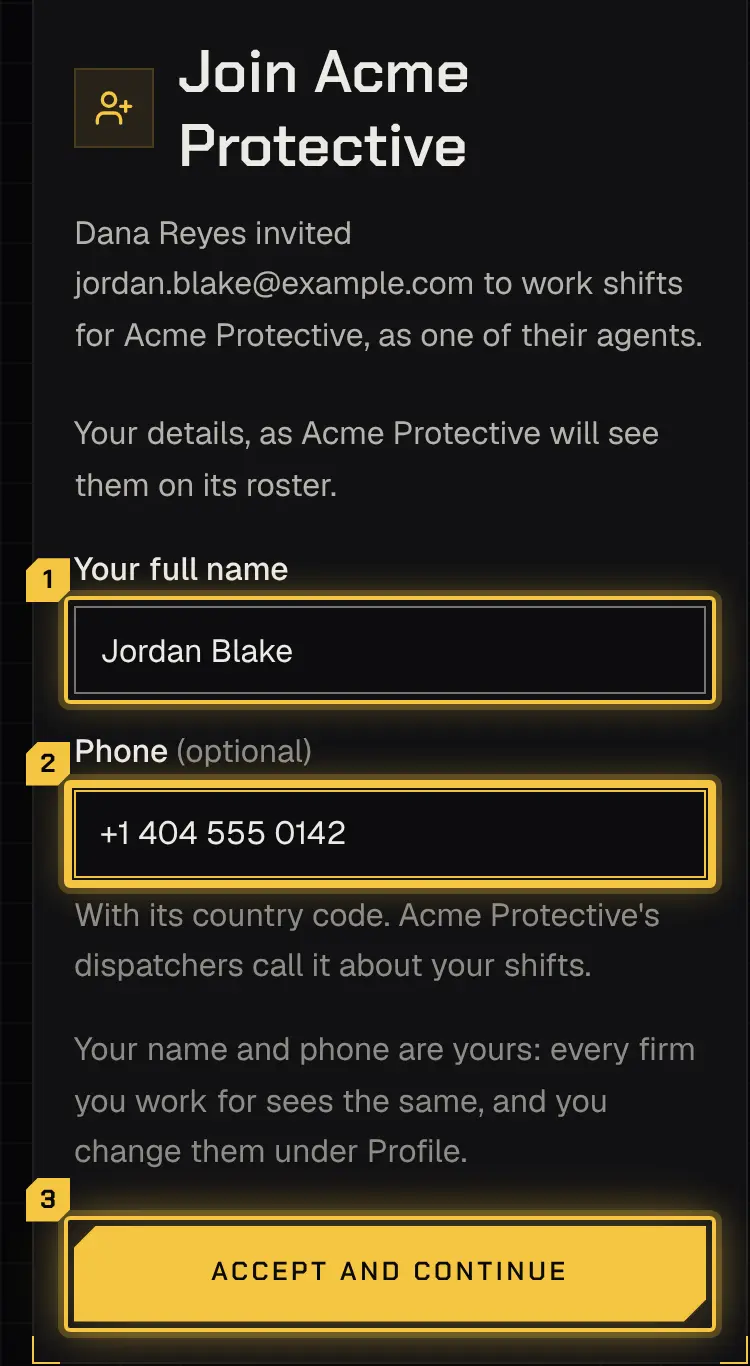
Section titled “Joining ”A firm adds you by sending an invite to your email. Open the link, confirm your name and phone number, and accept the firm’s own agreement. If you already work for another firm through the app, your details carry over and you only check them.
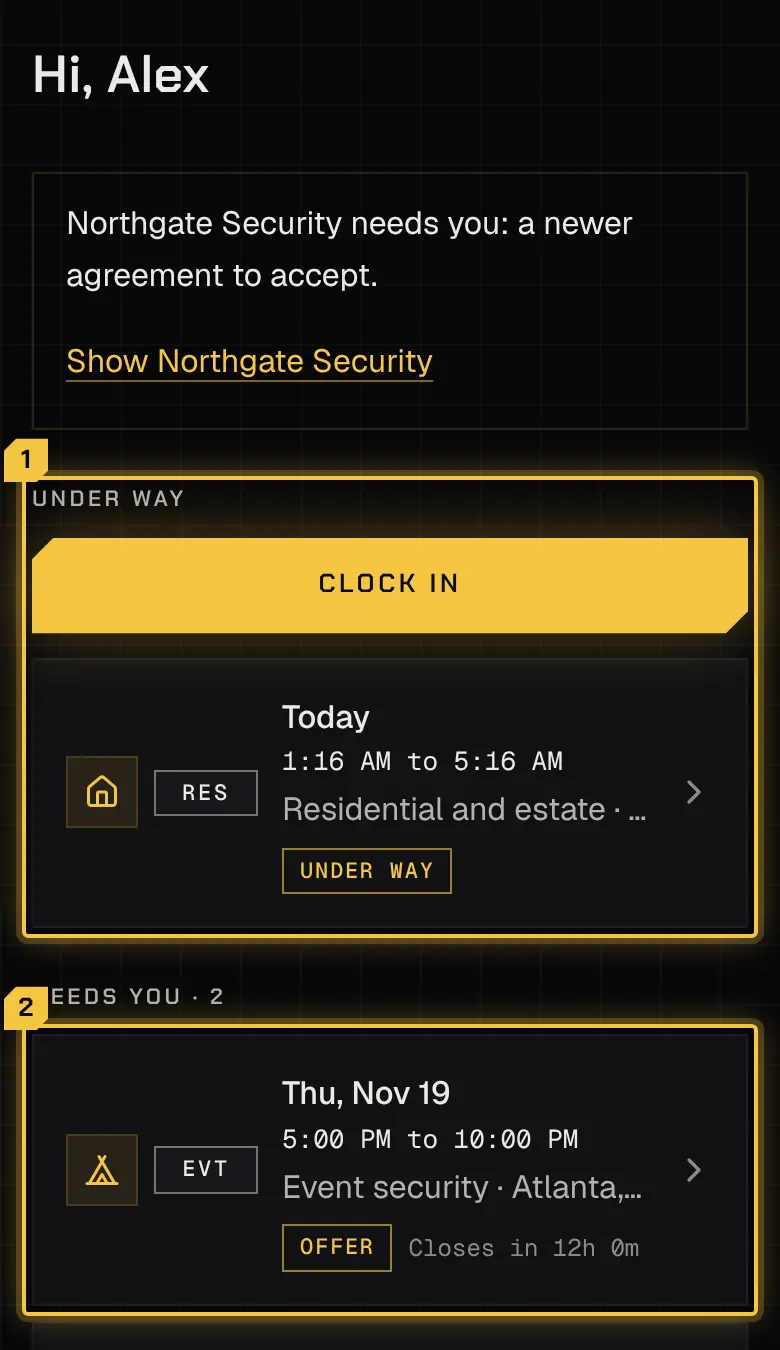
Home shows what needs you now, most urgent first: a shift under way, offers to answer, briefs to read and reports to write. When nothing needs you, it says so.
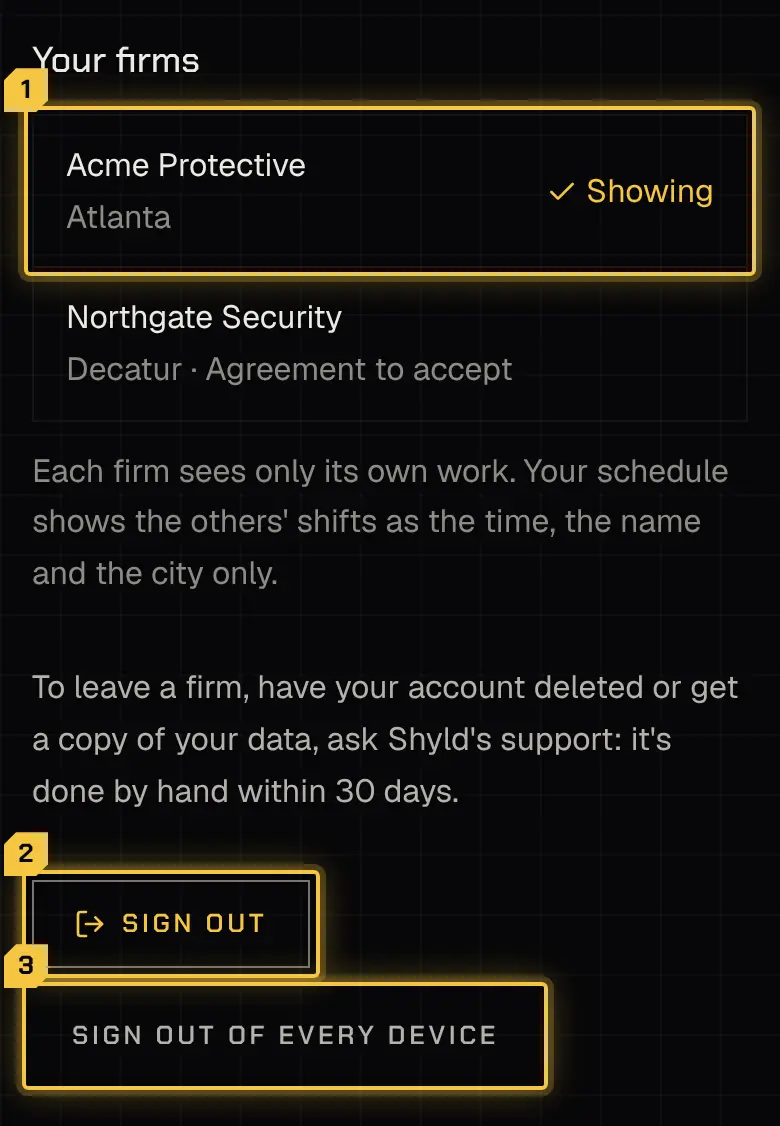
More holds your profile, availability, time off, credentials, getting paid, reports and expenses, and which firm the app is showing. Sign out signs this device out; Sign out of every device ends every session you have.
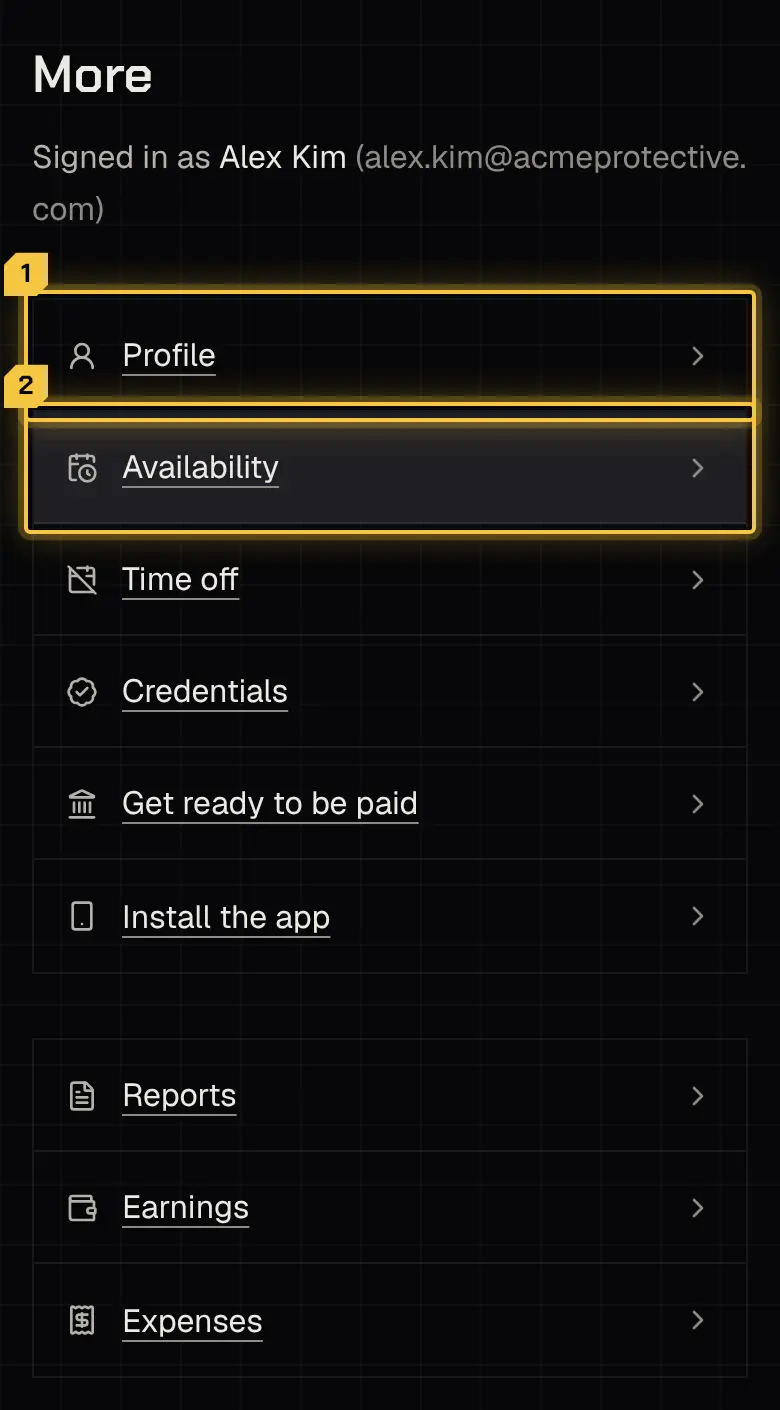
Your profile is yours, once for every firm you work with: your name, phone and a short bio. A firm may decline a bio it can’t use.
To leave a firm, have your account deleted or get a copy of your data, contact support. Support acts only once an owner or admin of your firm has confirmed it from inside their signed-in console, and it’s done within 30 days.
Installing the app
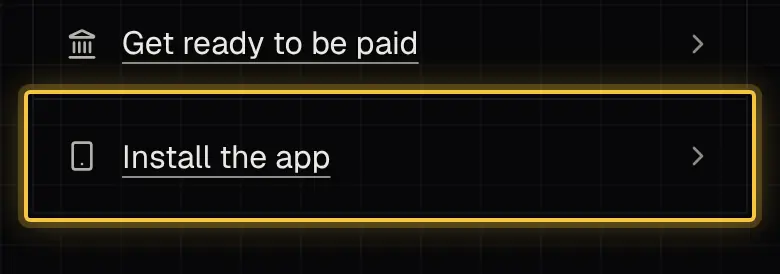
Section titled “Installing the app”On a phone, add the app to your home screen from More › Install the app. On an iPhone, notifications only reach you once it’s on the home screen.
Notifications
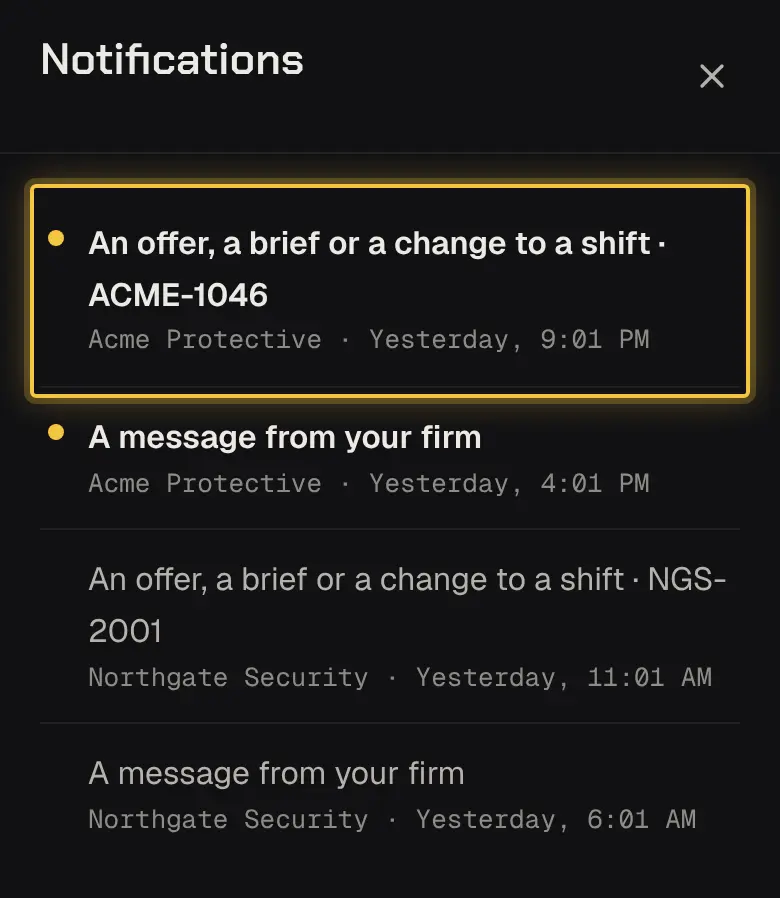
Section titled “Notifications”The bell at the top lists what’s happened at every firm you work with: new offers, changes to your shifts, check-ins due, reports and pay. Tapping one opens what it’s about, switching to that firm if it needs to.
On call
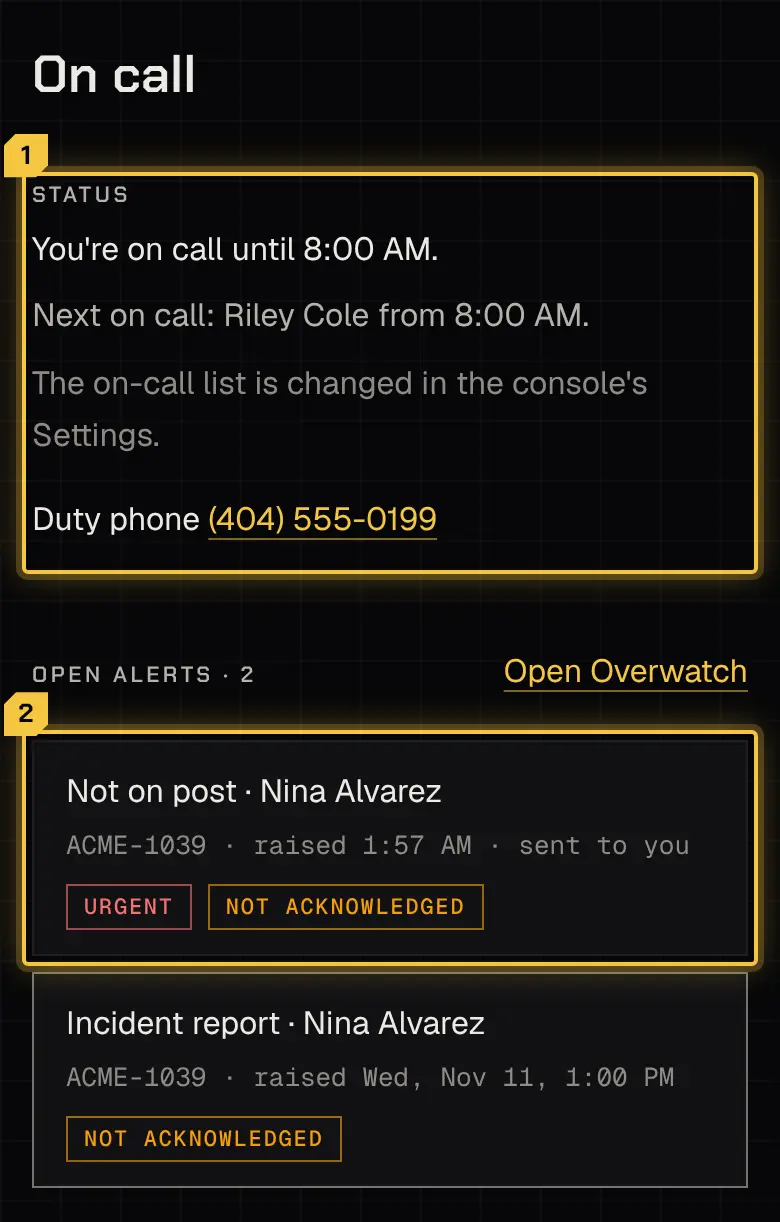
Section titled “On call”Owners, admins and dispatchers of a firm also get the On call tab: the live board of shifts under way and the alerts that need someone, whether or not they also work shifts. Staff who don’t work shifts see only On call and More.
An alert opens with what happened, who it went to, one-tap calls and the places, and you acknowledge and resolve it there. One kind is answered elsewhere: when an agent asks to clock in off the post, it’s approved or declined on the booking’s team in the console. The alert says so, with Answer on and the booking’s number to open it there.
Powered by Shyld