Daily operations
A day in the console follows the work: what needs you, who’s working, what’s live, then the time, the invoices and your team’s pay. Each part below is short and links the page that covers it in full.
Start on Today
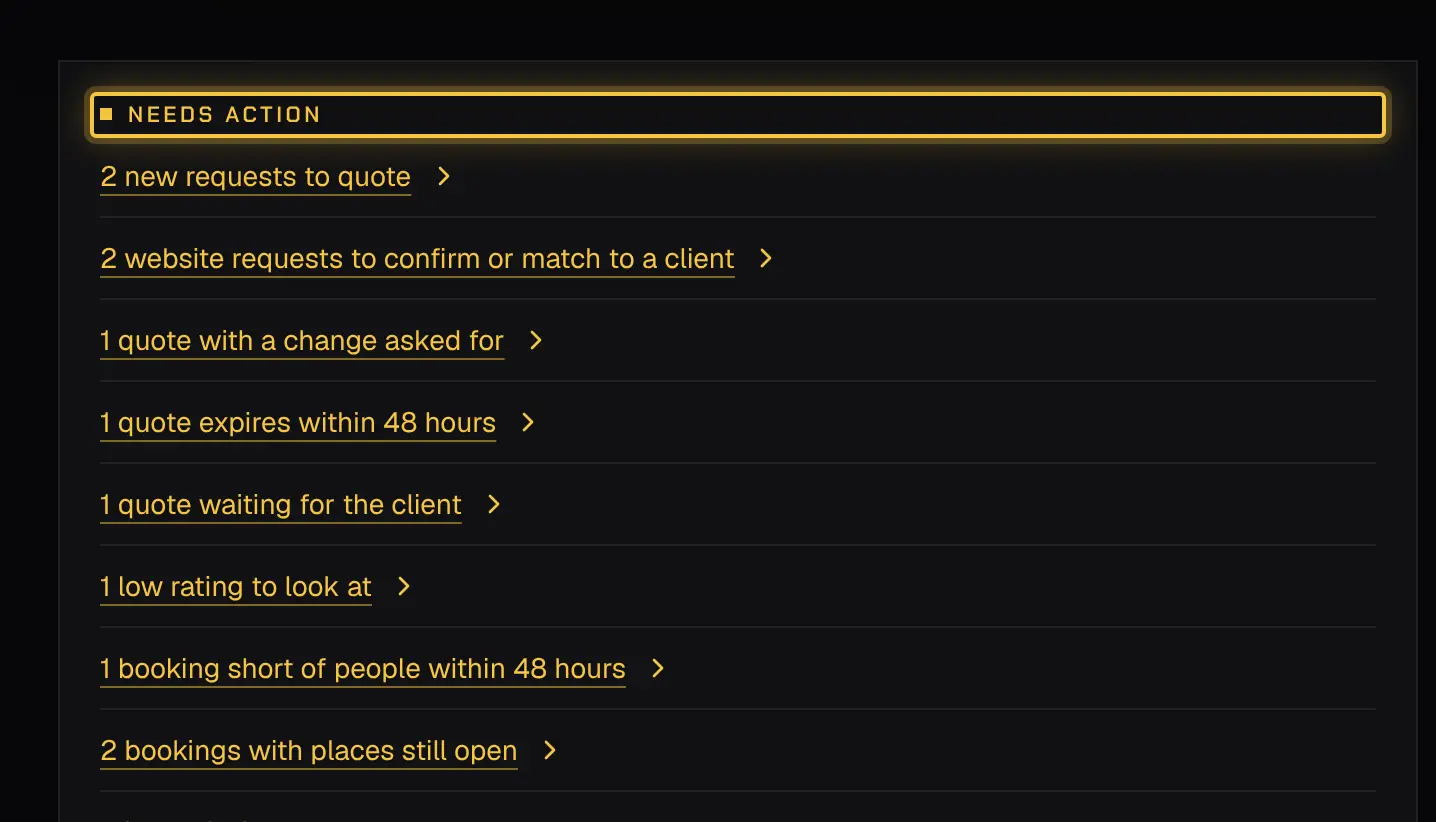
Section titled “Start on Today”Today lists what needs you now, in order of urgency: bookings short of people, requests to quote, quotes waiting or about to expire, changes and guests to confirm, time and expenses to review, invoices to send, and reports. What’s live and who’s on call are beside it. Select an item to go straight to it. More: Today.
Staff the work
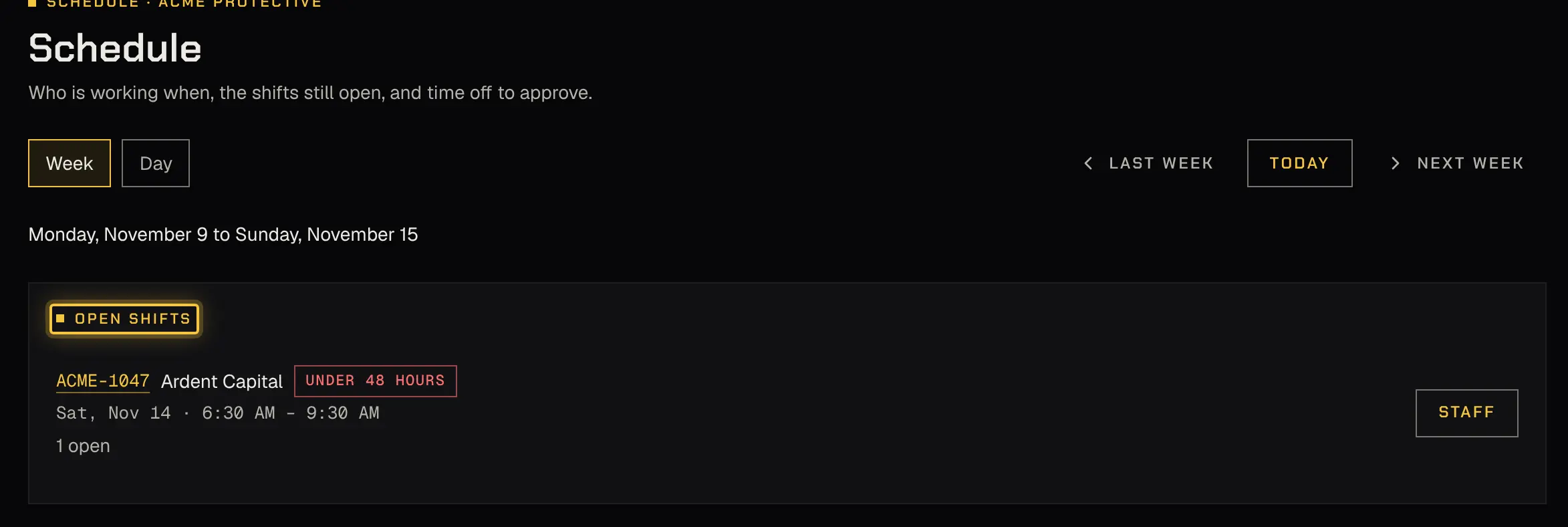
Section titled “Staff the work”Fill open places by offering them to your agents or assigning them. A conflict (another shift, time off, a lapsed credential) needs a reason before you place someone. Decide releases and asks not to stay into extra time from the booking. The Schedule shows everyone’s week. More: Schedule and Bookings.
Watch what’s live
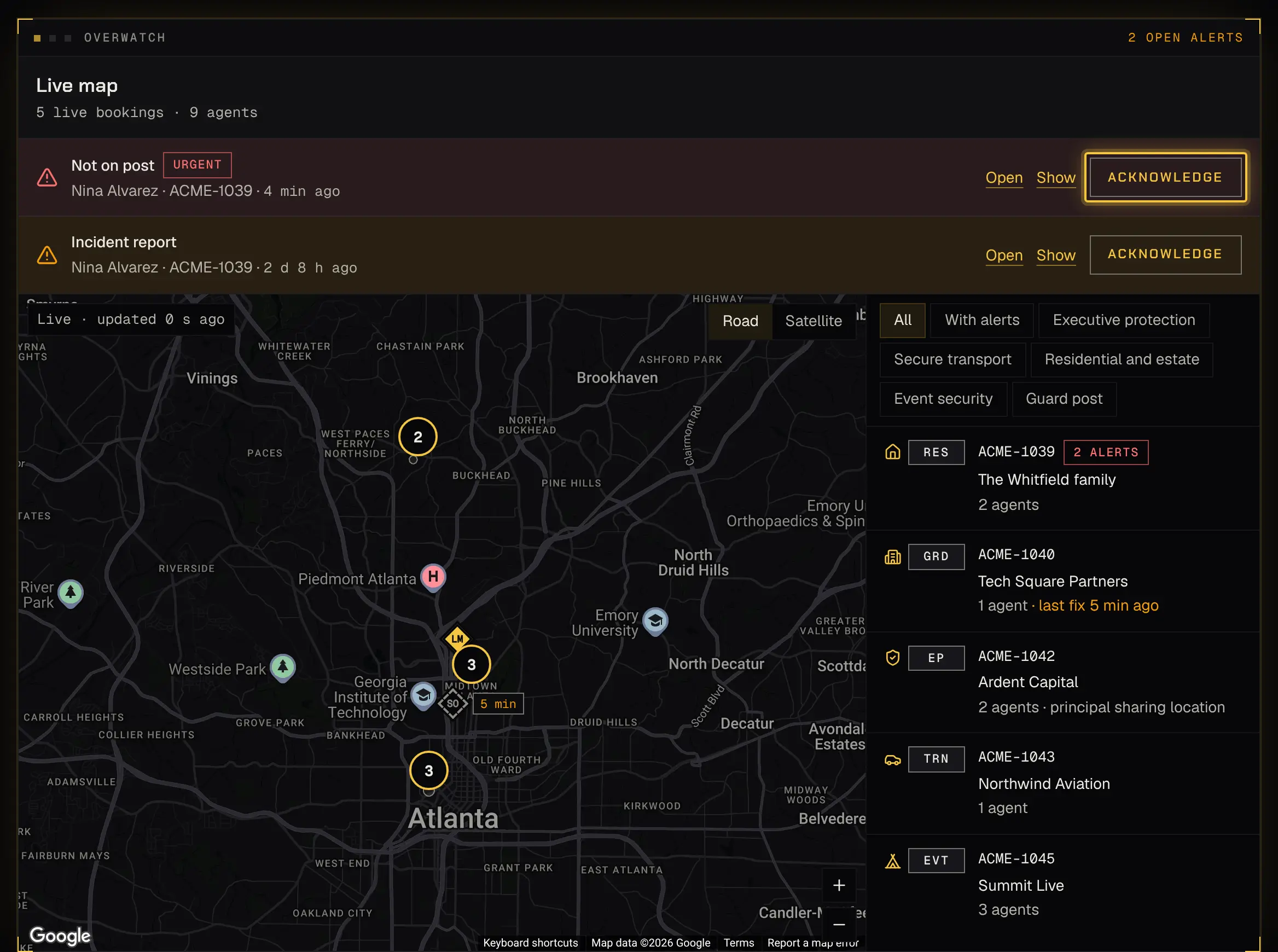
Section titled “Watch what’s live”Overwatch shows every shift under way on the map, with alerts that need someone: a late start, a missed check-in, lost signal, an urgent alert. Acknowledge an alert, then resolve it with a note. More: Overwatch.
On call
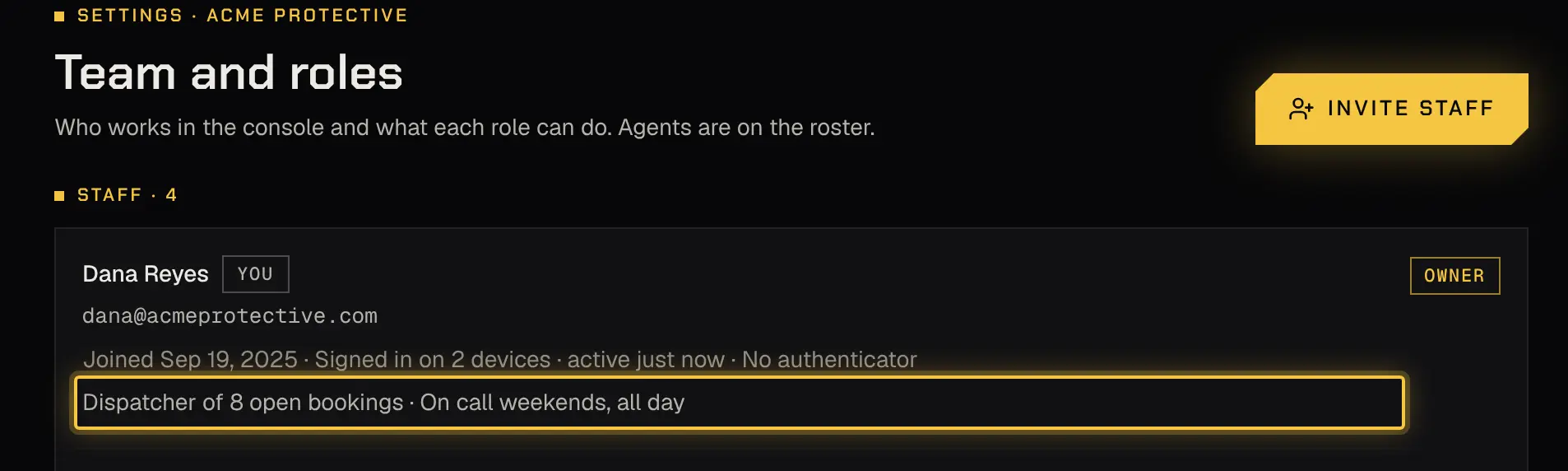
Section titled “On call”Whoever is on call gets urgent alerts by push and email through the On call tab of the agent app, on their phone. Keep the roster current so someone always is. More: Today.
Changes, cancellations and extra time
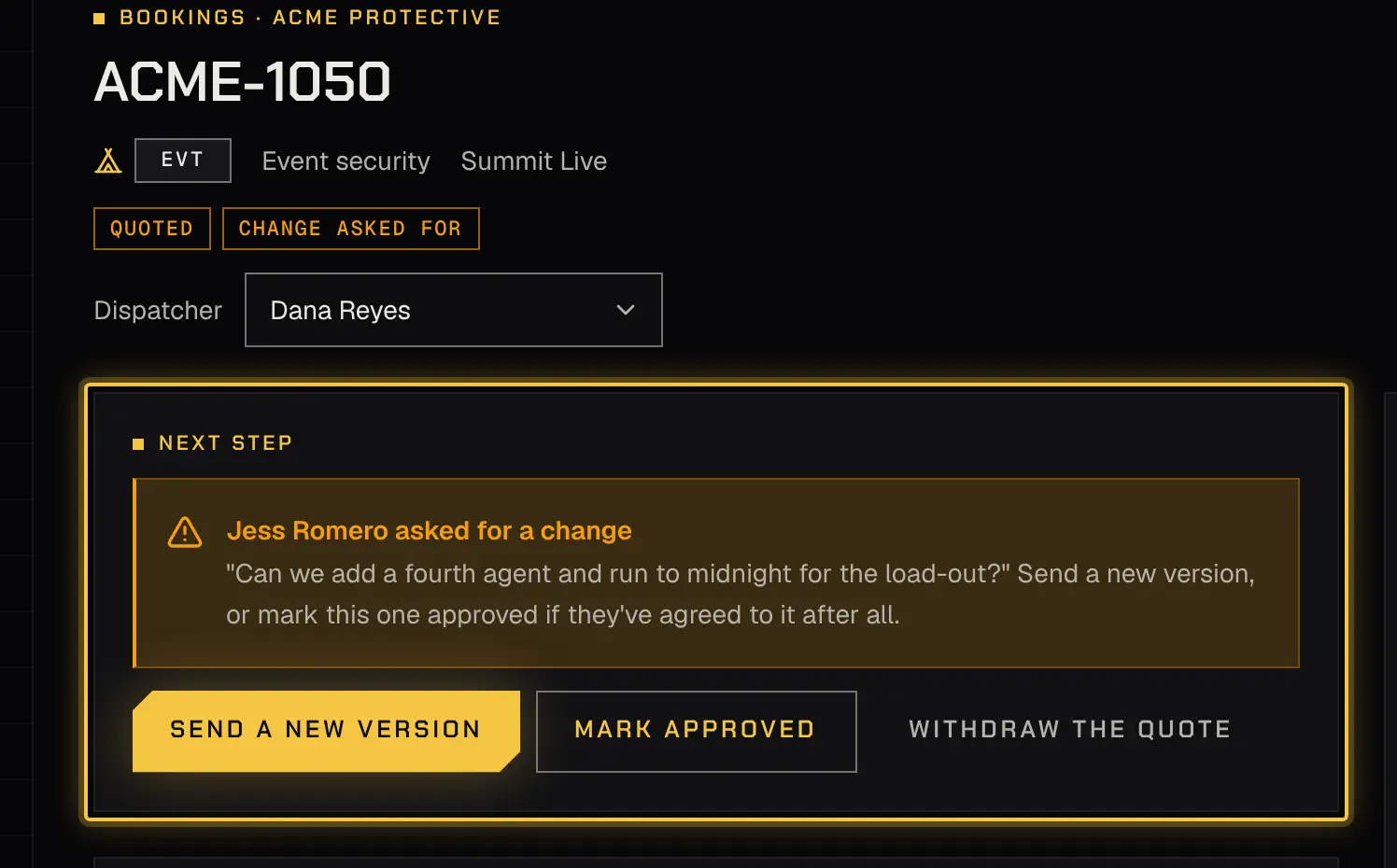
Section titled “Changes, cancellations and extra time”A client may ask for a change, cancel, or agree to extra time on a shift under way. Each waits on the booking for you, with what it costs. More: Bookings.
Time and expenses
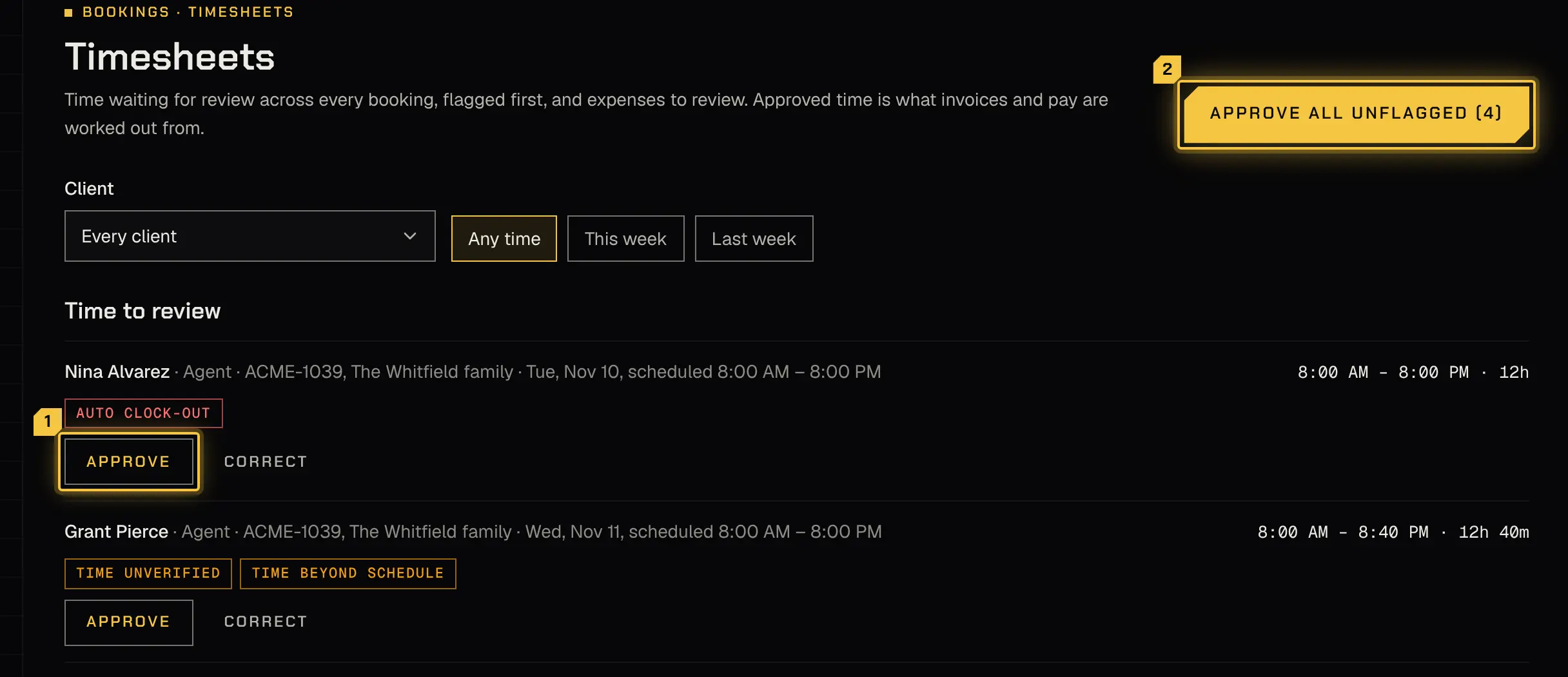
Section titled “Time and expenses”After a shift, review each person’s time and approve it; an early start counts only when you tick it. Review expenses, and bill them or not. Approved time is what invoices and pay are worked out from. More: Timesheets and expenses.
Invoices
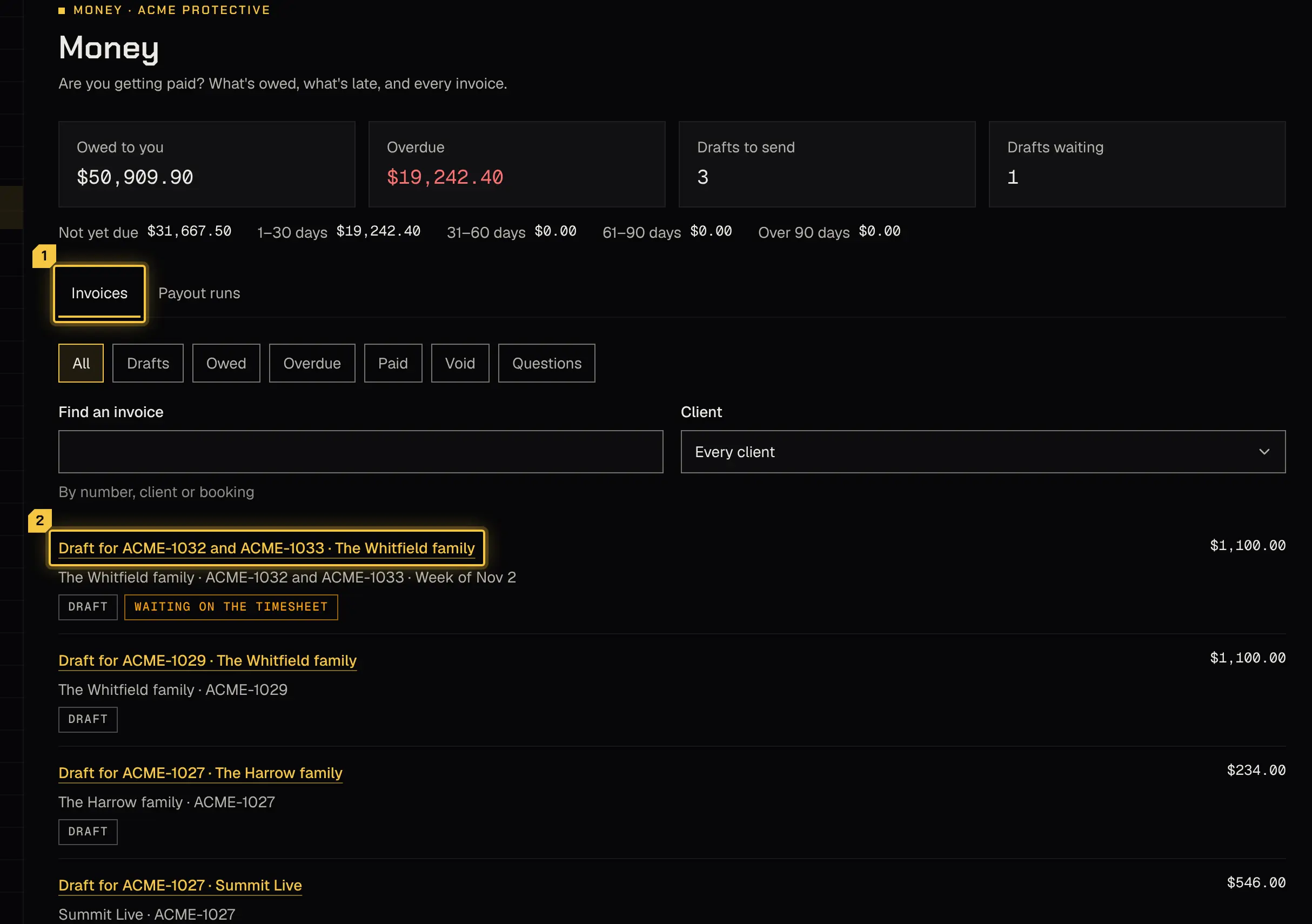
Section titled “Invoices”Invoices are drafted from approved time. Check and send them, answer questions on them, and record payments made outside the platform. Reminders go on their own. More: Invoices.
Reports
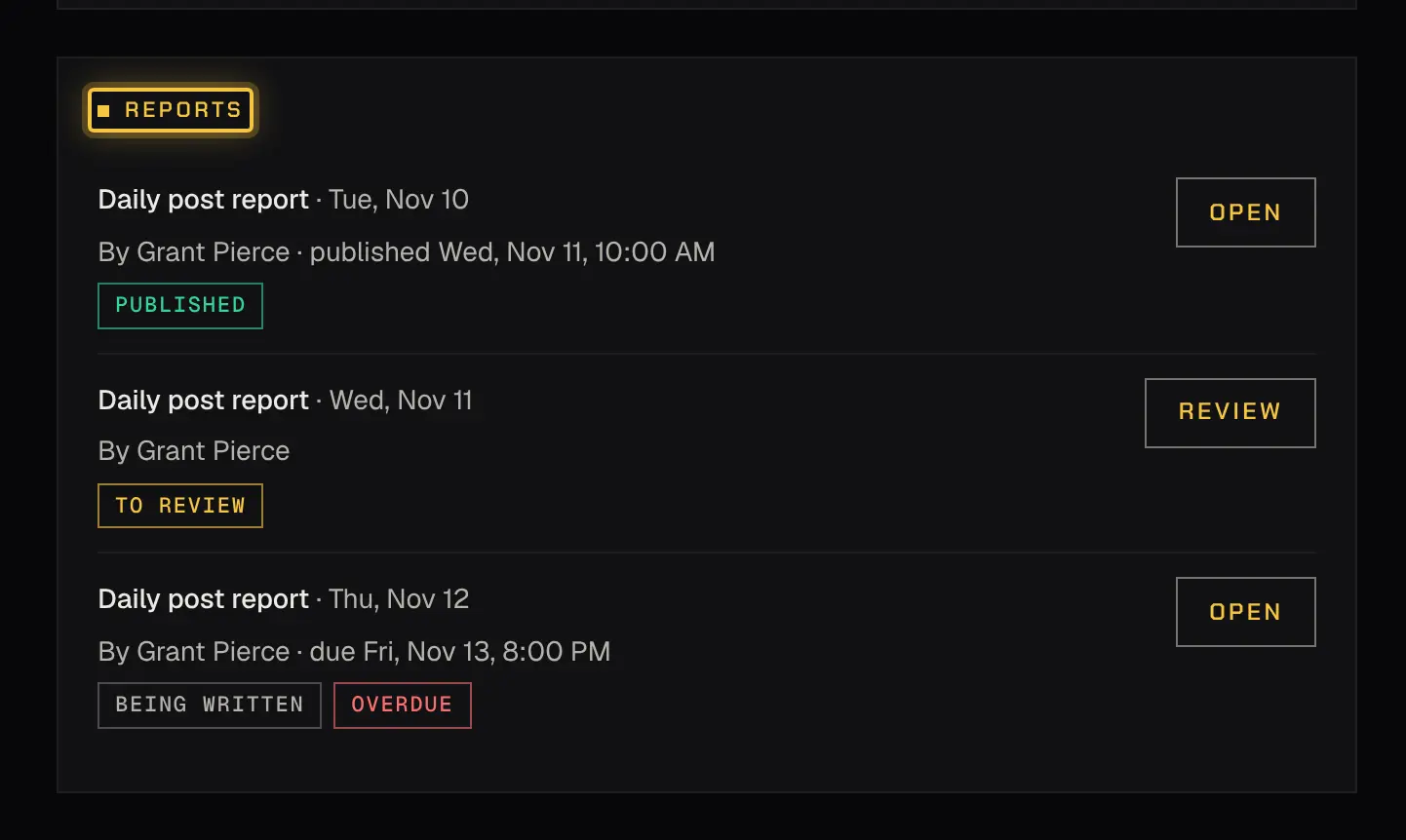
Section titled “Reports”Reports your agents write come to you to review, send back or publish to the client. Remind anyone whose report is overdue. More: Reports.
Pay your team
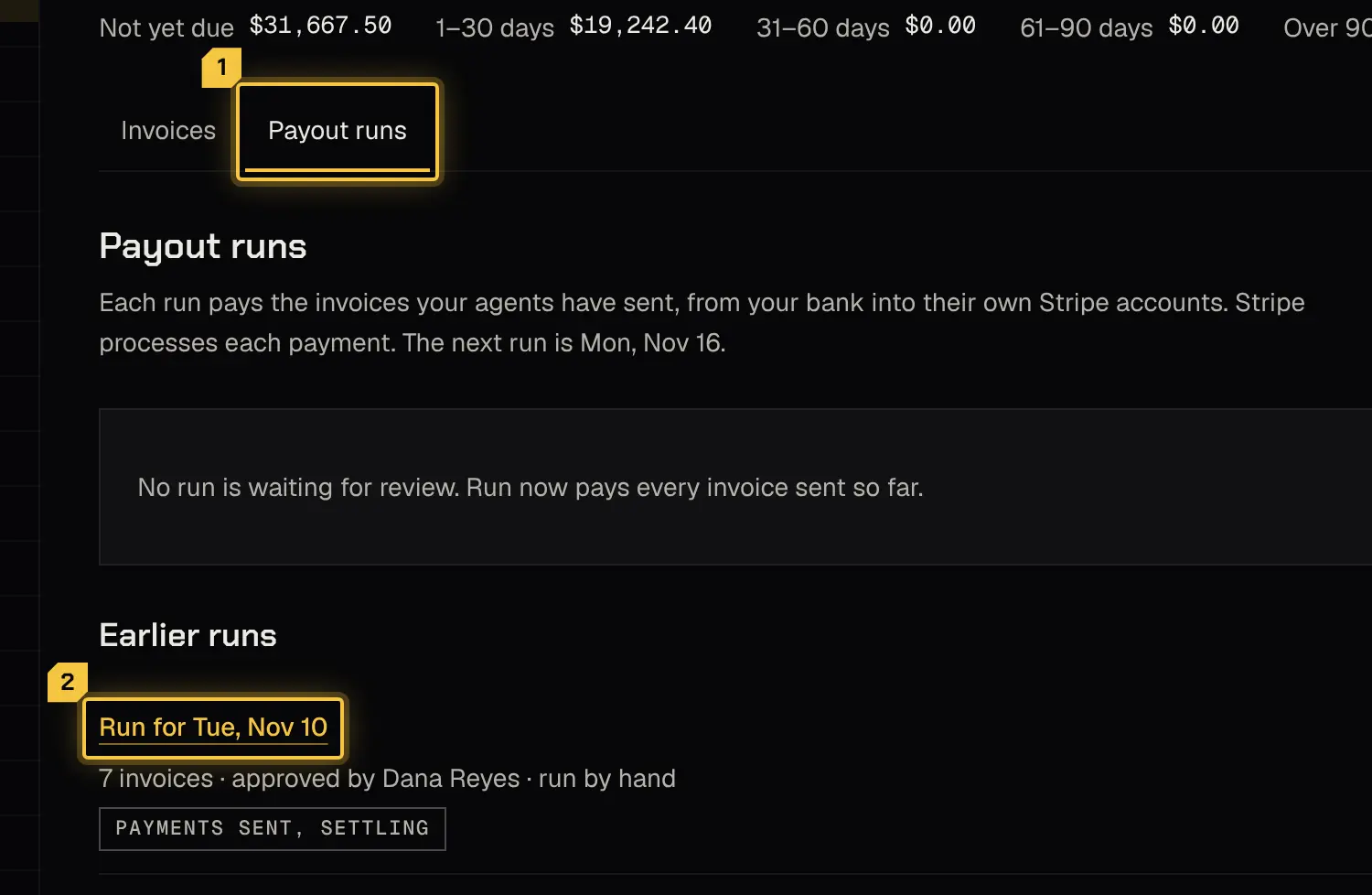
Section titled “Pay your team”Your agents invoice your firm for their work, and payout runs pay those invoices on your schedule. Review and approve each run, hold an invoice with a reason if you need to, and answer their questions. More: Paying your team.
Shyld support access
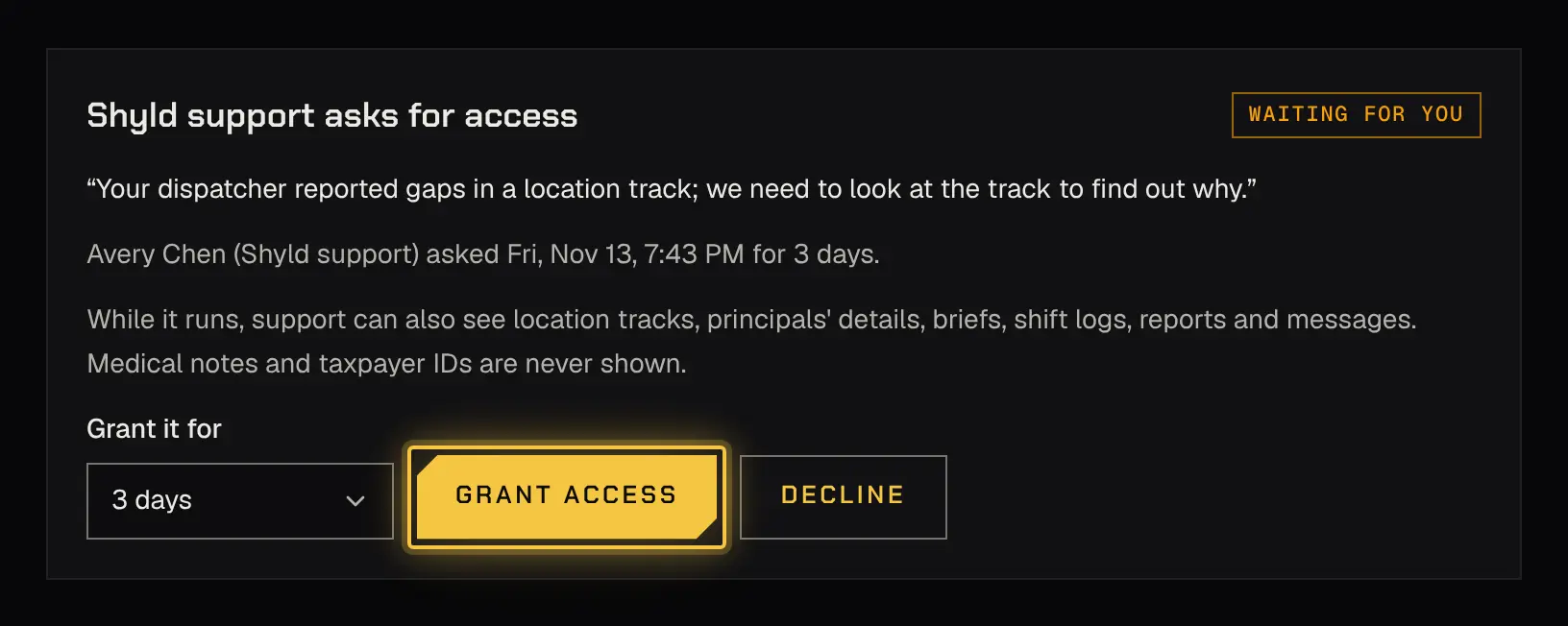
Section titled “Shyld support access”If Shyld support asks to look at your firm, the request waits on the owner’s Today. The owner grants it for the days asked or fewer, or declines it, and everything support looked at is listed. More: Shyld support access.
Powered by Shyld