Troubleshooting
Start with what you’re seeing. Each answer links the page that covers it in full.
Sign-in codes
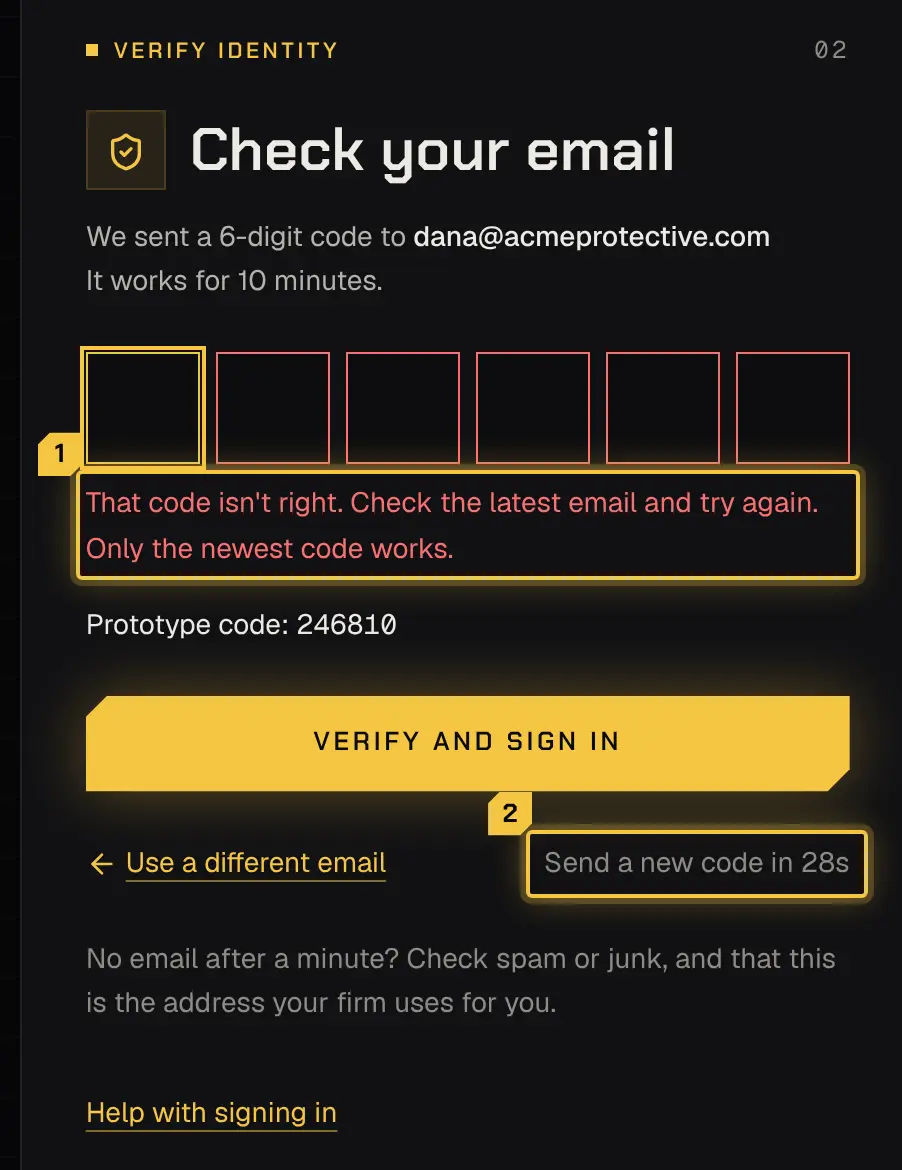
Section titled “Sign-in codes”The code didn’t arrive.
- Check spam or junk.
- Check that it’s the address your firm has for you.
- Wait a minute, then select Send a new code (there’s a short wait between codes).
- Only the newest code works, so use the latest email.
The code doesn’t work.
- A code works for a short time, once, and stops after too many wrong tries (wrong_code, code_expired).
- Select Send a new code and use the newest one.
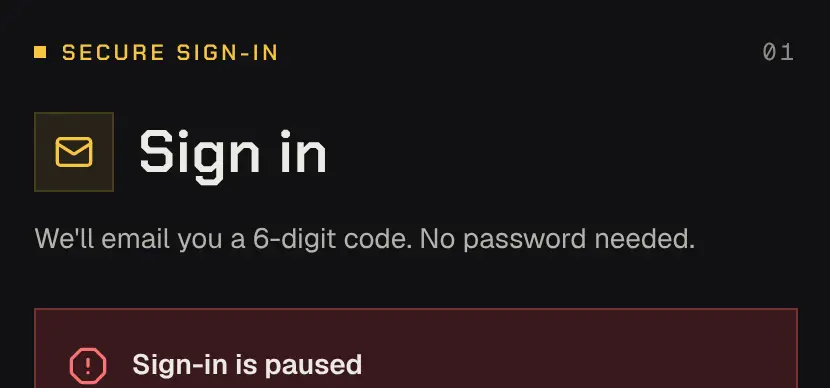
Sign-in is paused.
- After too many codes or wrong tries for one address, sign-in pauses. The page says when you can try again (locked, too_many_requests).
- Wait until then. Asking again doesn’t shorten the wait.
The authenticator code is wrong, or the phone with it is lost.
- Check that the phone’s clock is set automatically. Authenticator codes depend on it.
- If the authenticator is gone, an owner or admin of your firm can reset it for you. If you’re the owner, contact support: they check the email address on file and call you back on the phone number on file before anything changes.
- Shyld support never asks for your sign-in code or your authenticator’s code, by email, phone or message; anyone who does isn’t Shyld support.
- The full steps are on Signing in.
Signing in
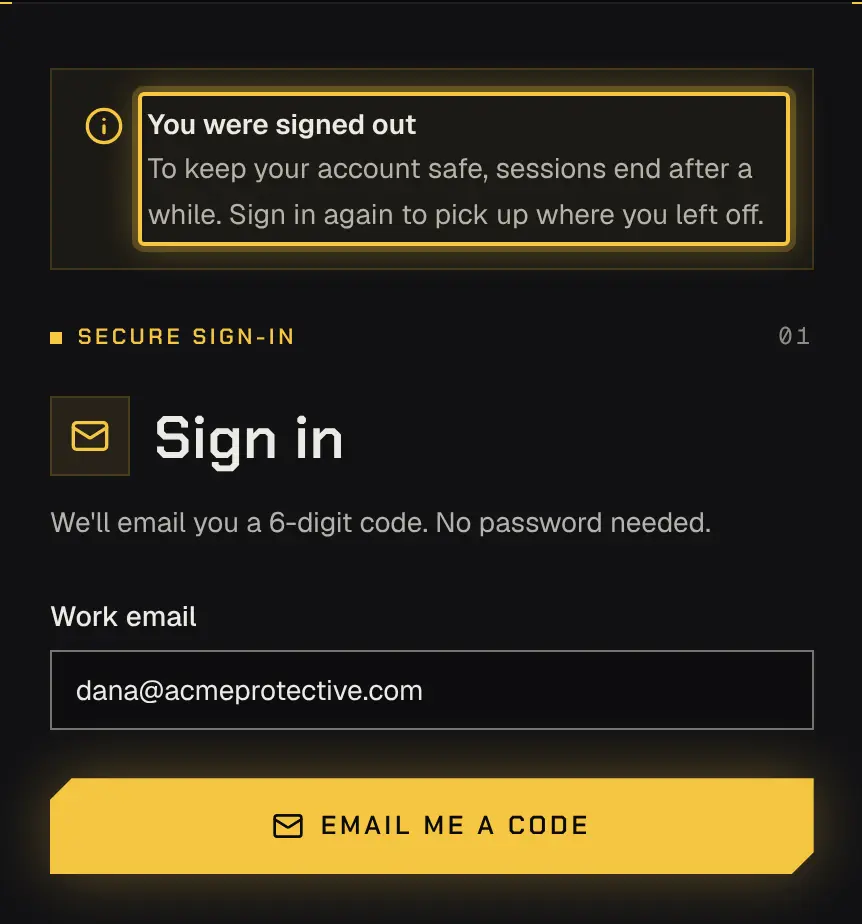
Section titled “Signing in”“You were signed out.”
- Sessions end after a while to keep your account safe (session_expired).
- You’re also signed out when your role changes, or when someone signs you out of every device.
- Sign in again to carry on. Changes you hadn’t saved in an open panel are kept when your session ends.
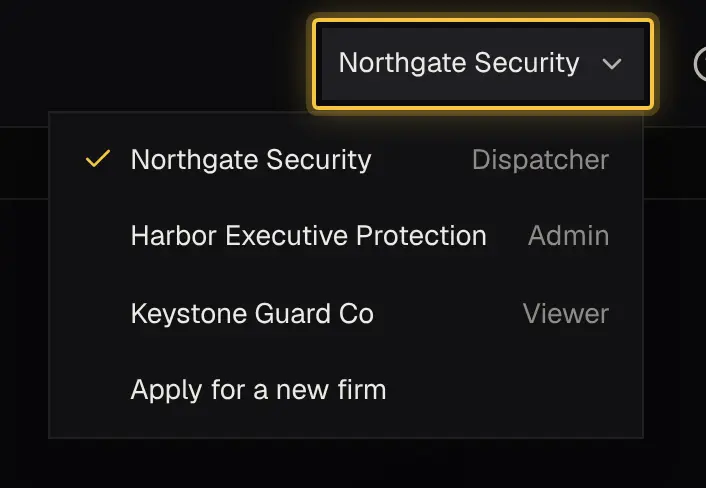
You work with more than one firm.
- After the code, you choose which one to open.
- You can switch at any time: staff use Switch firm at the top, and agents use More (choose_business).
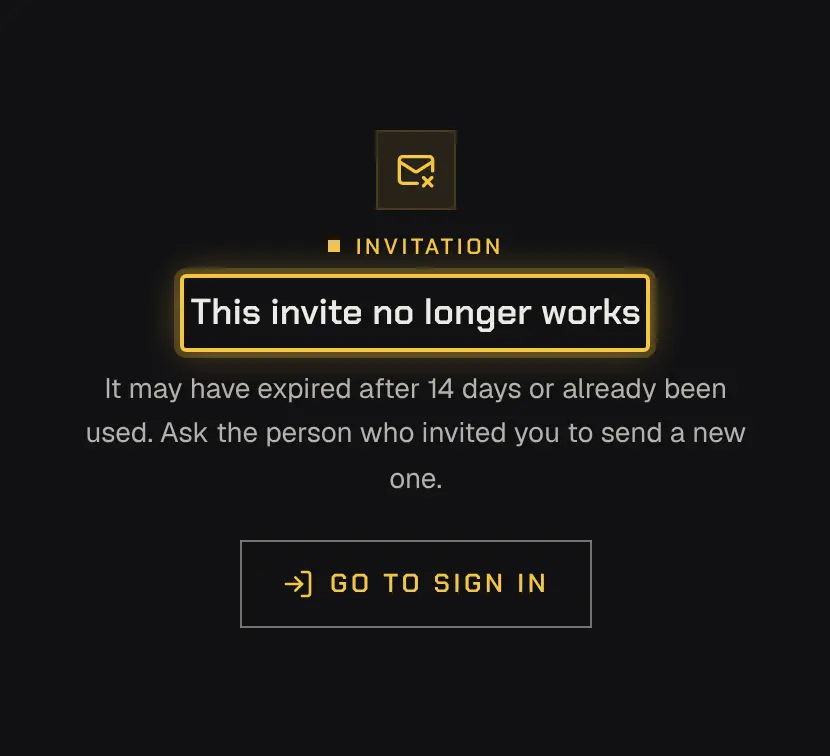
An invite link doesn’t work.
- The link works only for the address it was sent to, and only until it expires, is used or is withdrawn (invite_invalid, invite_wrong_email).
- Ask whoever invited you to send a new one.
You’re asked to accept the terms.
- The first sign-in asks you to read and accept them, and again for each new version (terms_required).
- Nothing else opens until you have.
Notifications on a phone
Section titled “Notifications on a phone”No alerts reach the phone.
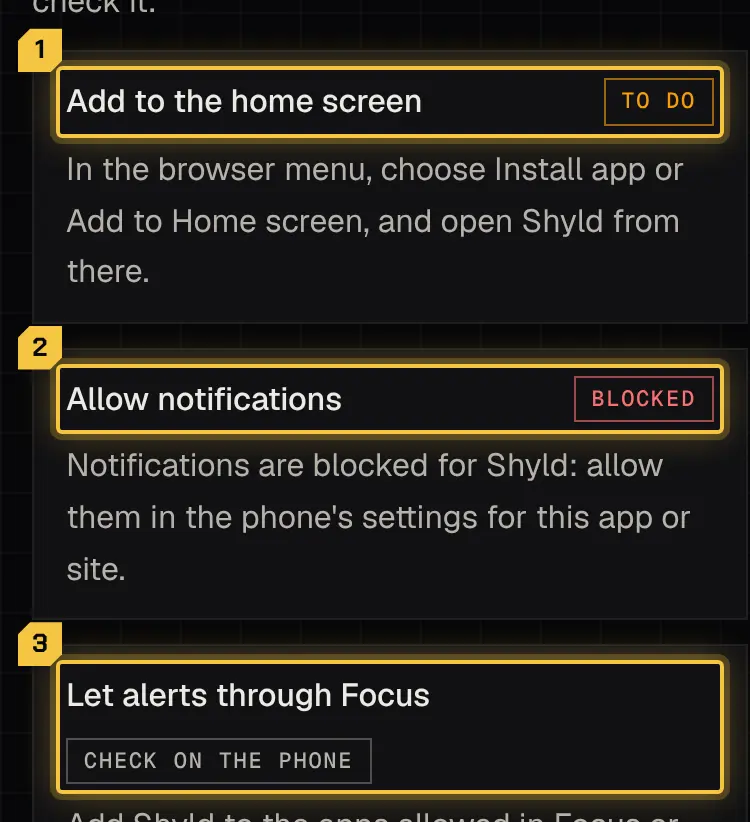
- Add the app to the home screen and open it from there. On an iPhone, notifications only work from the home screen, and you sign in once more there.
- Allow notifications when the app asks. If you said no before, allow them in the phone’s settings for the app.
- Stay signed in on that phone. An alert reaches a phone only while you’re signed in on it.
- Let alerts through Focus or Do Not Disturb (below).
The app’s Install the app steps under More check each one and say when you’re set.
For more, see Installing the app.
Alerts are silent at night.
- iPhone: Settings › Focus › the Focus you use (for example Do Not Disturb) › Apps › Allow Notifications From › Add (+) › choose the app › Done. Do it for each Focus you use. The app shows in that list only once its notifications are allowed.
- Android: Settings › Notifications › Do Not Disturb › Apps, then add the app (or your browser). This may differ by phone.
Then tick I’ve allowed it in Focus in the app’s steps.
An email went to spam. Mark it as not spam, so the next one arrives in your inbox. Every email and when it’s sent is listed on Notifications.
A code on a screen
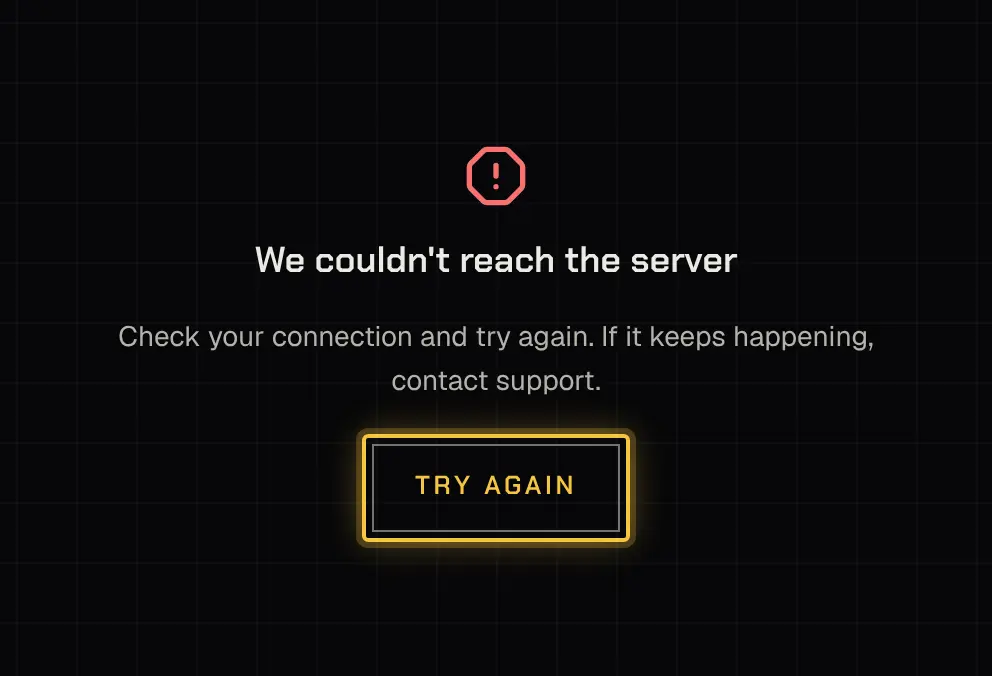
Section titled “A code on a screen”When something can’t be done, the screen says why and, where it helps, shows a code. Each code is explained on Error codes. If a screen says it can’t reach the server, check your connection and try again (network).
Powered by Shyld