First steps
Do these once, on the phone you’ll carry on shift. Each step links the page with the detail.
1. Install the app
Section titled “1. Install the app”The app runs in the phone’s browser. Installed on the home screen it opens like any app, and it can notify you even when it’s closed.
- iPhone: open the invite link in Safari, tap Share, then Add to Home Screen. Open the app from the home screen and sign in once more there: notifications on iPhone only work from the home screen.
- Android: open the invite link in Chrome, open the browser menu and choose Install app (or Add to Home screen), then open it from there.
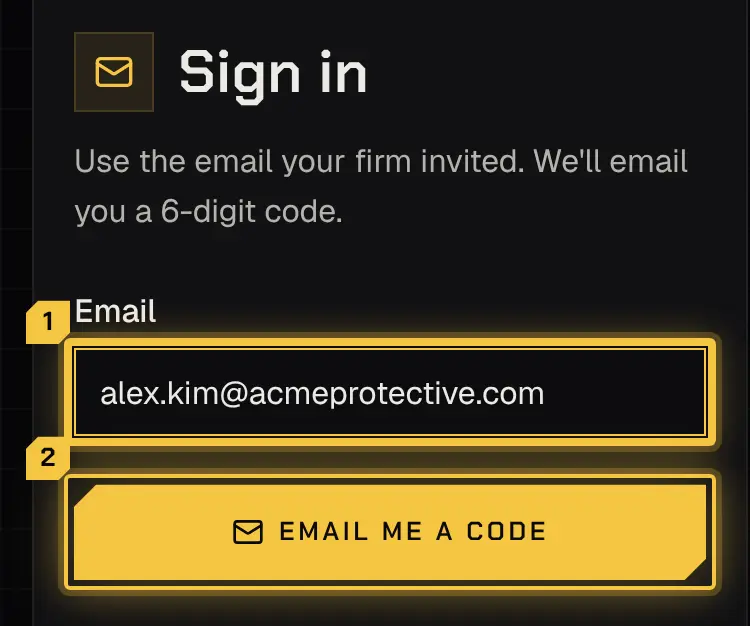
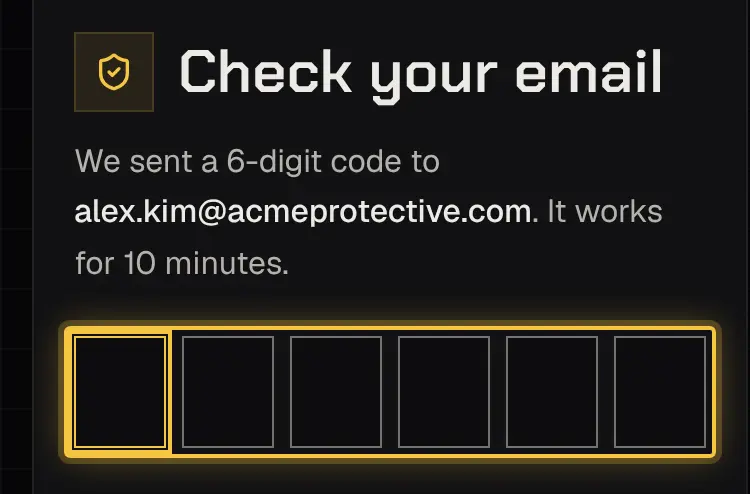
Sign in with your email: the app sends you a 6-digit code to type in. More is under Getting started.
2. Notifications, and alerts through Focus
Section titled “2. Notifications, and alerts through Focus”More › Install the app shows three steps, each marked done as you finish it:
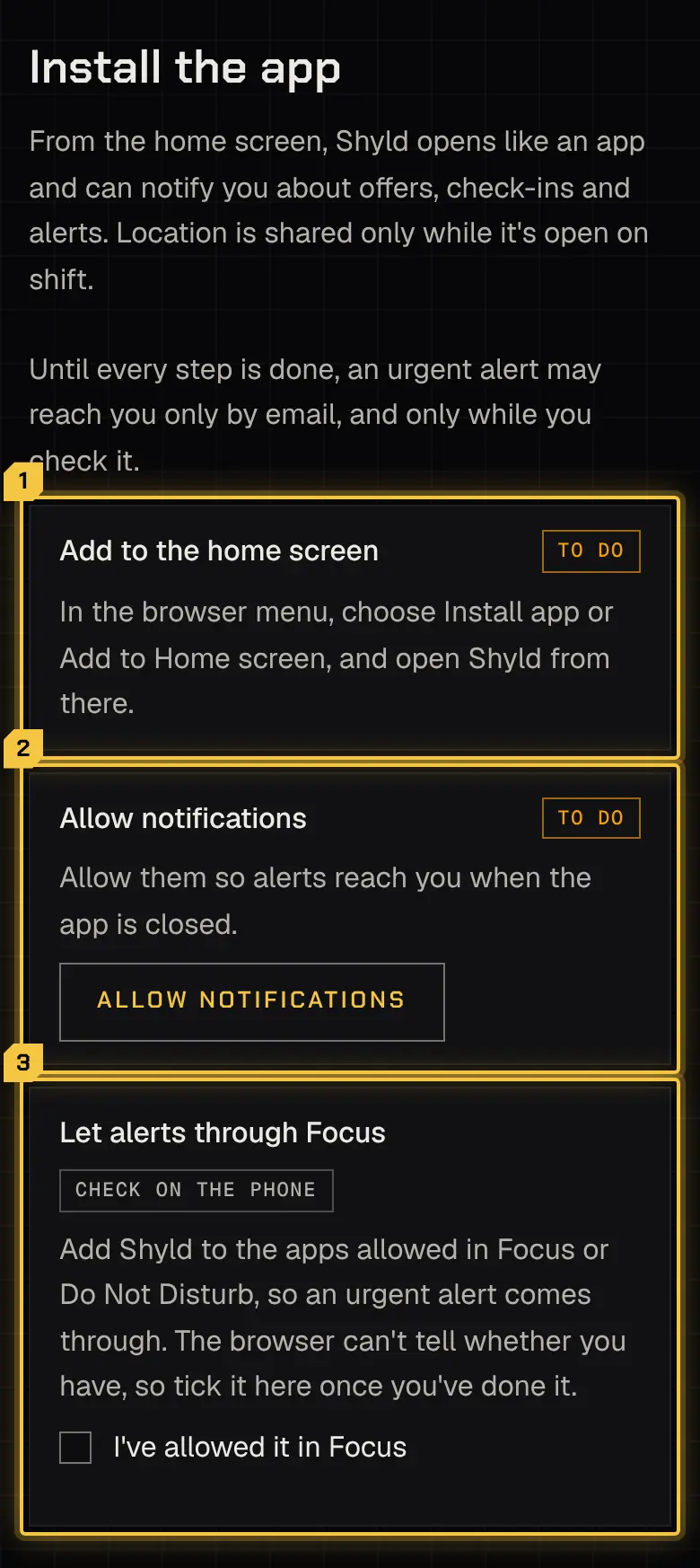
- Add to the home screen, as above.
- Allow notifications: tap Allow notifications and allow them when the phone asks. If they were blocked earlier, allow them again in the phone’s settings for the app or the site.
- Let alerts through Focus: add the app to the apps allowed in Focus or Do Not Disturb, so an urgent alert comes through when the phone is silenced. The app can’t see this setting, so tick I’ve allowed it in Focus once you’ve done it.
- iPhone: Settings › Focus › the Focus you use (for example Do Not Disturb) › Apps › Allow Notifications From › Add (+) › choose the app › Done. Do it for each Focus you use. The app shows in that list only once its notifications are allowed.
- Android: Settings › Notifications › Do Not Disturb › Apps, then add the app. This may differ by phone, and the names vary between makers.
When all three are done, it says urgent alerts reach this phone even with the app closed. Until then, an alert may reach you only by email.
If your firm sends a test alert, it shows on the app: tap Confirm it reached me so they know alerts get through.
Alerts reach a phone only while you’re signed in on it. Signing out stops them on that phone.
3. Get ready to be paid
Section titled “3. Get ready to be paid”More › Get ready to be paid lists what each firm needs, depending on how it pays you:
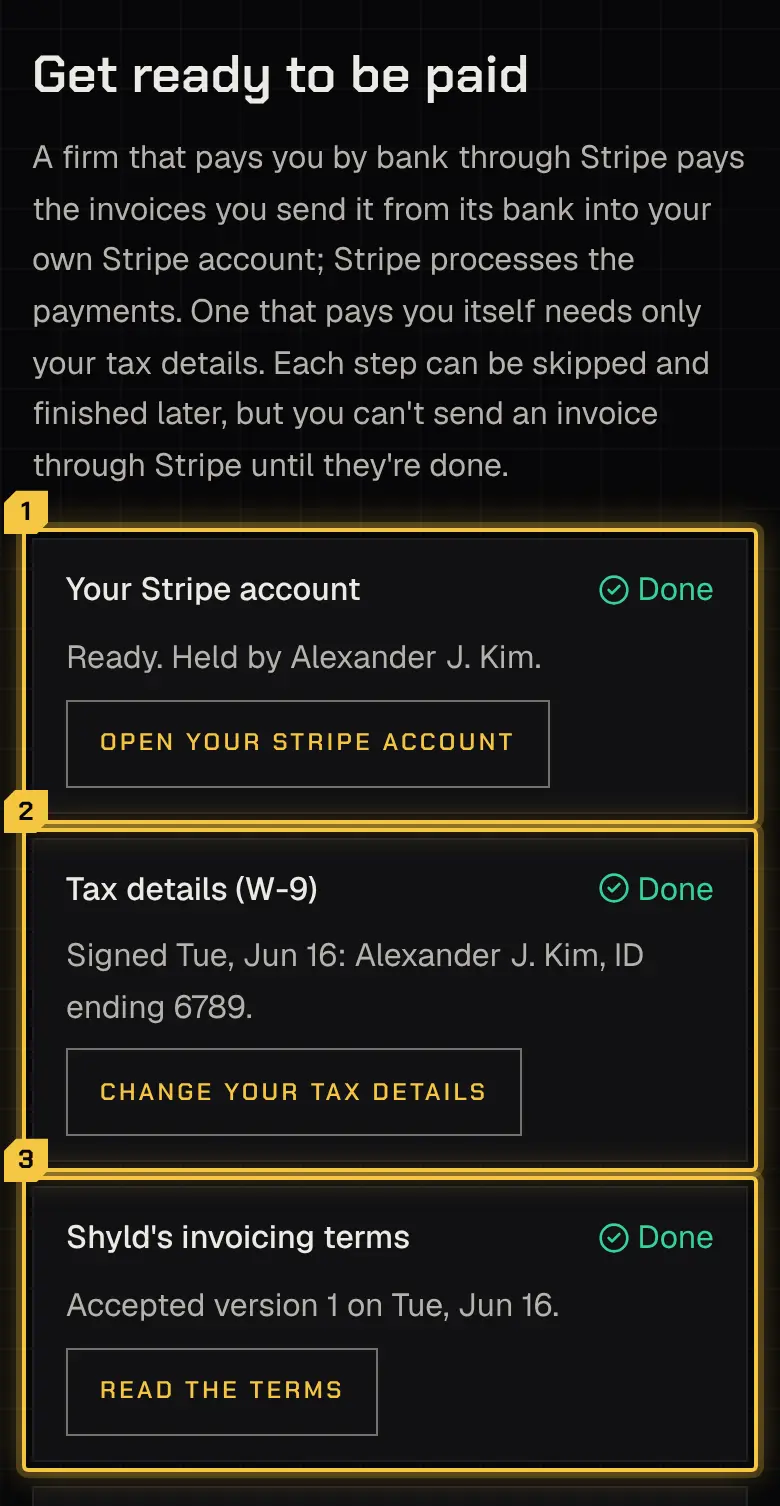
- By bank through Stripe: your own Stripe account, set up on Stripe’s own screens inside the app (Stripe asks for your details and a bank account, and may confirm you with a code to your email or phone when you add it), your tax details (W-9), and the invoicing terms. The firm pays the invoices you send it from its bank into your Stripe account; Stripe processes the payments.
- Itself, as a contractor: your tax details (W-9) only.
- As its employee: nothing to set up here.
The W-9 is signed once and used for every firm. The name on it must match your Stripe account. Your first payment through Stripe can take about 2 to 3 weeks; later ones settle in about 4 business days. More is under Getting paid.
4. Availability and time off
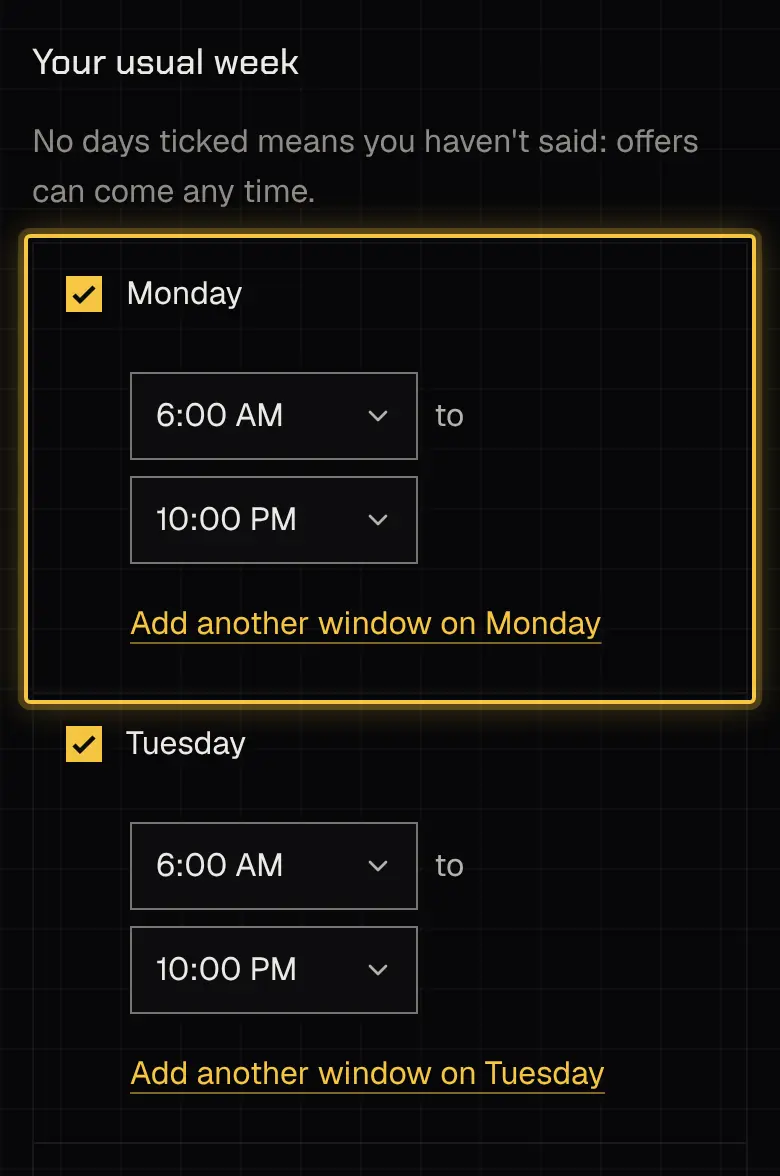
Section titled “4. Availability and time off”More › Availability sets the hours you can work, and Time off asks for days away. Both are shared with every firm you work for. More is under Availability, time off and credentials.
5. Your first shift
Section titled “5. Your first shift”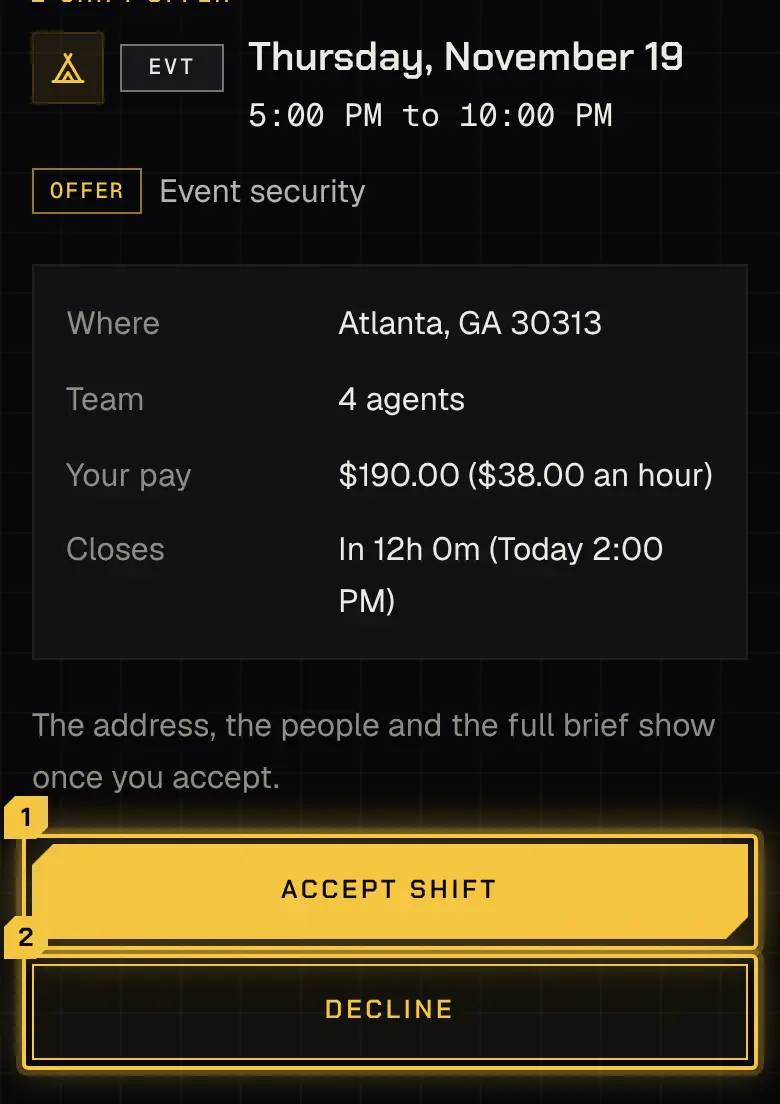
-
The offer: it arrives as a notification and on Home. Open it, read the details, and tap Accept shift or Decline. See Offers.
-
The brief: before the shift, read it on the shift’s page. The first time you start, the app shows it and asks you to tap I’ve read it, I’m on my way (or I’ve read it, clock me in). See Shifts and the brief.
-
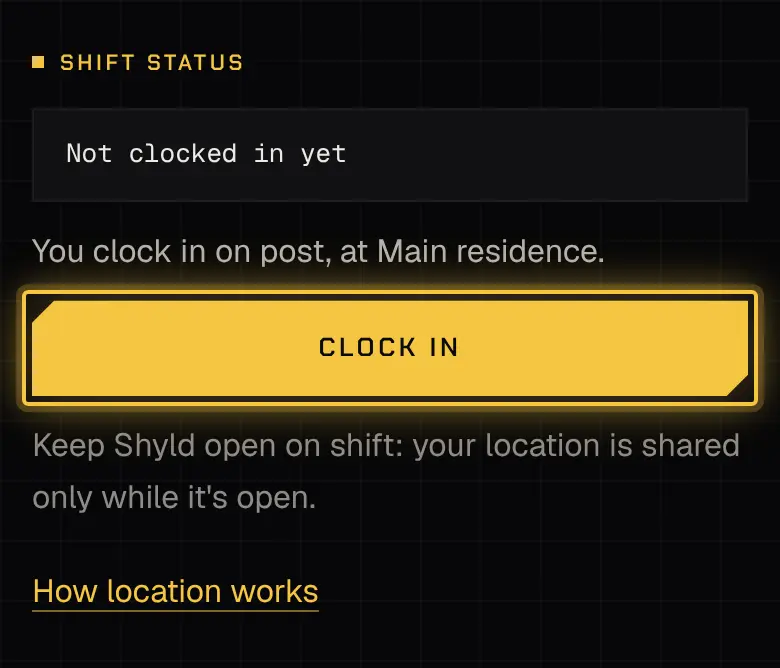
On my way and clock-in: On my way opens 2 hours before the start, and Clock in 30 minutes before. Clock-in runs a quick check first: location on and precise, notifications allowed, the app installed.
-
On shift: keep the app on screen. Answer each check-in with I’m OK. If you’re outside the post, the app warns you, then alerts your firm.
-
No signal: keep working. What you do waits on the phone, marked Waiting to send, and goes with the time you did it once there’s signal. If your location stops reaching the firm, the app reminds you to open it.
-
Clock out when you finish, and write the report if you’re asked to. See The live shift and Reports.
Powered by Shyld