Shyld support access
Support can always see some of your account to help you. Anything more needs the owner’s grant, for up to 7 days, and every look is listed in Settings › Shyld support access.
What support sees
Section titled “What support sees”Without a grant, support sees your bookings, payments, payouts, alerts and email deliveries, read-only.
While a grant runs, support can also see location tracks, principals’ details, briefs, shift logs and reports. Support can also edit your website’s draft and remove an image nothing on it uses, for example to fix something you asked about, but never publishes it: you publish it yourself from Brand and site. Each save is listed under What Shyld did as “Edited your website draft (not published)”, with the reason support gave.
Medical notes and taxpayer IDs are never shown to support, with or without a grant.
Answer a request
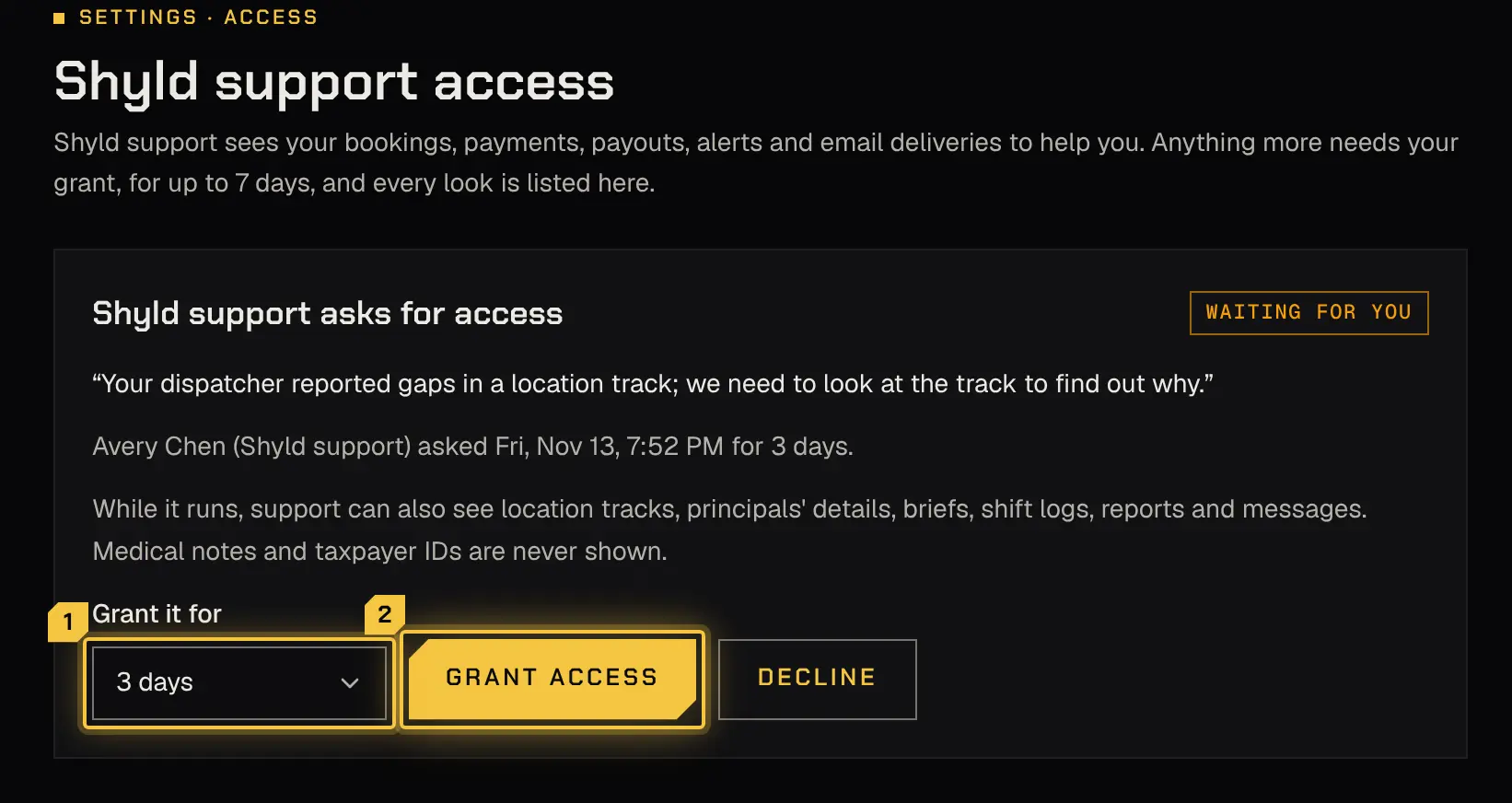
Section titled “Answer a request”When support asks for more access, the owner is emailed and the request appears on the owner’s Today and at the top of this page, marked Waiting for you, with who asked, when, why and for how many days (1 to 7).
To grant it:
- Choose the days under Grant it for: the days asked, or fewer.
- Select Grant access.
To decline it:
- Select Decline.
- Optionally add A note for support; support sees it with your answer.
- Select Decline again, or Back to return to the request.
If nothing is waiting, the page says No access granted.
End a grant early
Section titled “End a grant early”While a grant runs, the page shows Support has access: who granted it, for how long, when it ends and whether support has used it yet. Select End access now to stop it at once.
Earlier requests
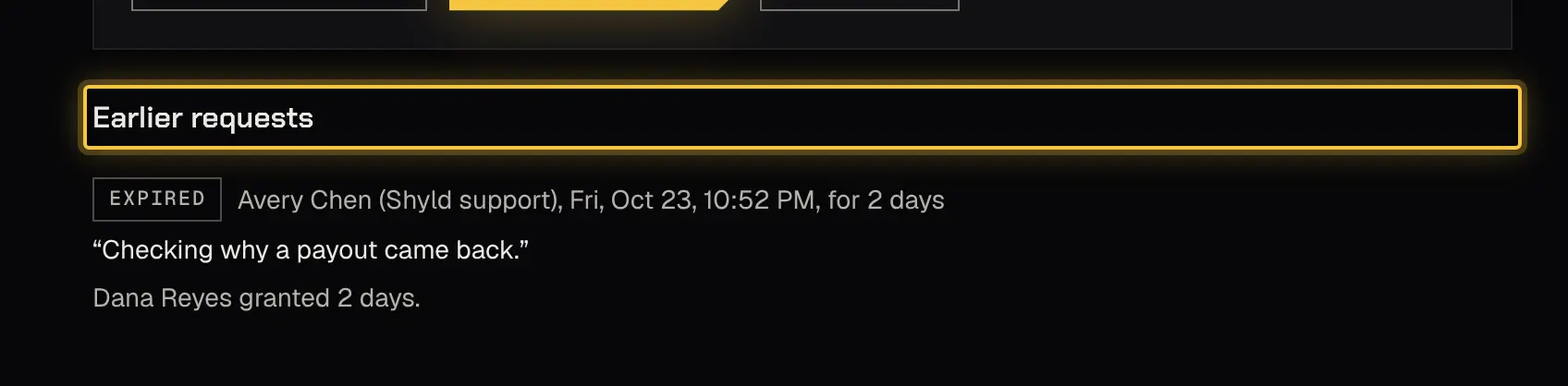
Section titled “Earlier requests”Earlier requests lists past requests, newest first, each marked Declined (with your note), Ended early, Expired or Not answered.
What support looked at
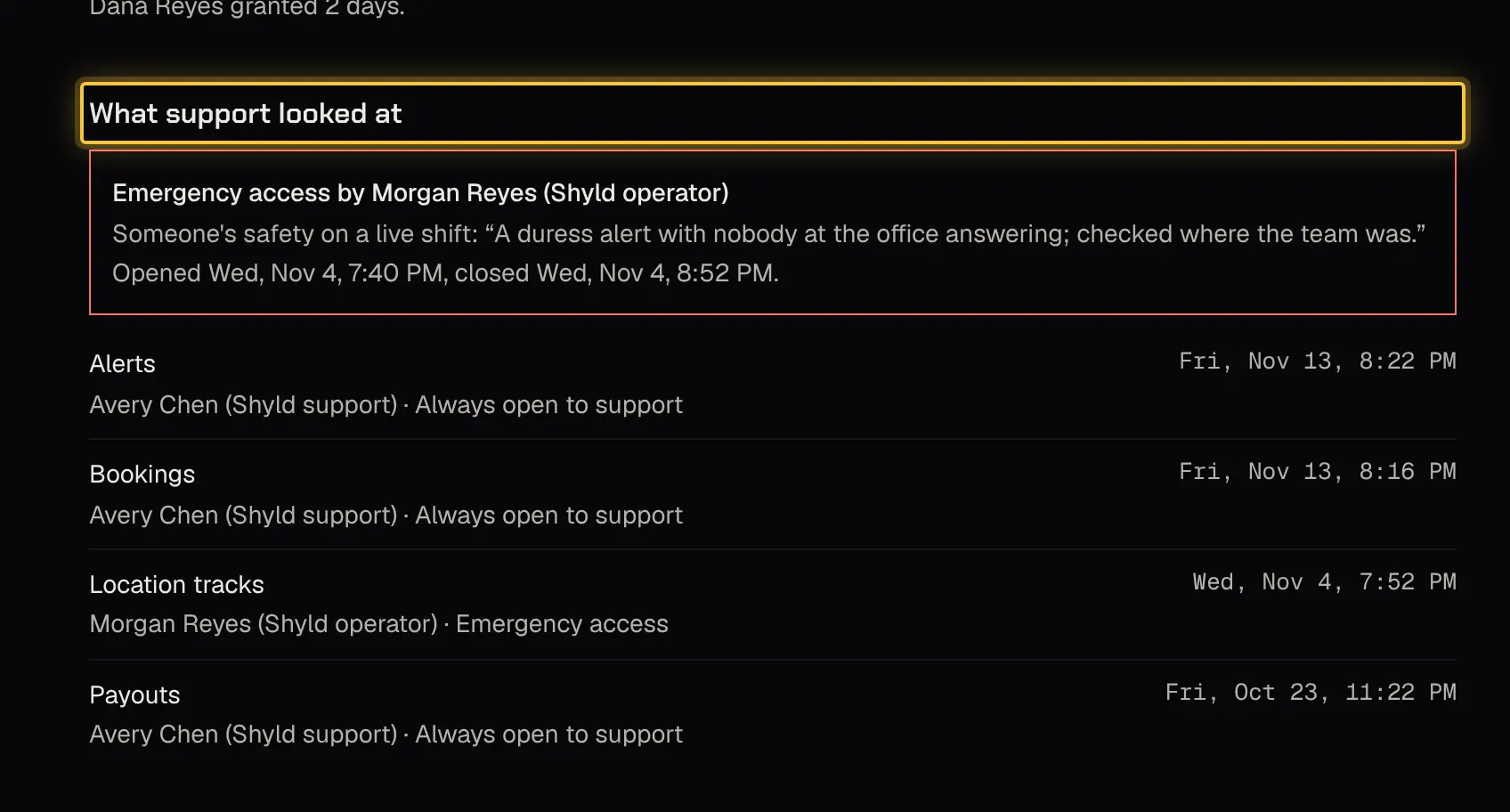
Section titled “What support looked at”What support looked at lists every view support made of your account, newest first: who looked at what, and when, and whether it was an area always open to support, under your grant, or emergency access. It includes support opening your account’s overview and its history, which support can always see.
What support did
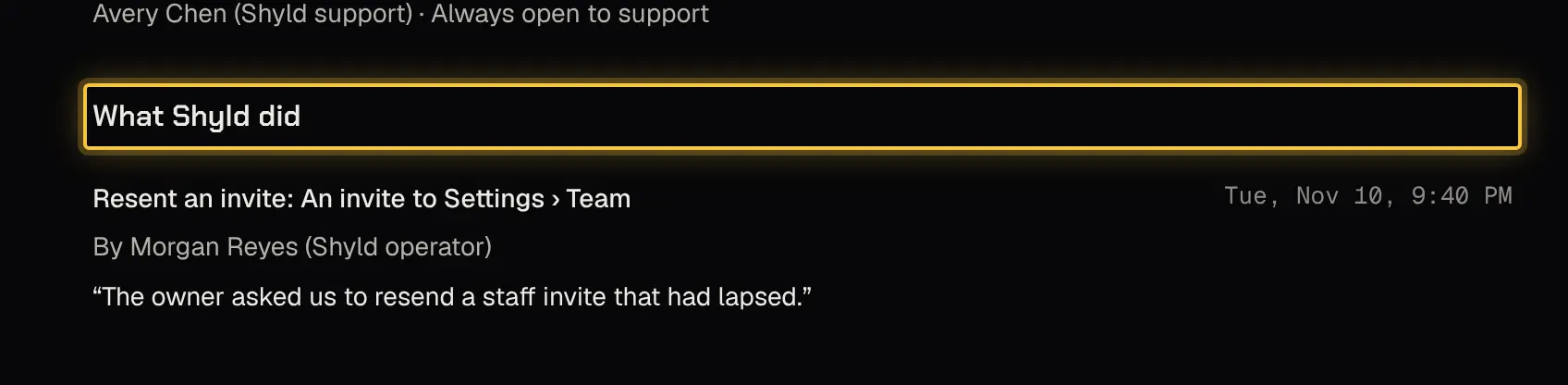
Section titled “What support did”The last list shows each action support took in your account, newest first: what it was, to what, when, who did it and the reason they gave. Support can, for example, resend an invite, close a clock-in left open, or clear an email bounce, so emails go to that address again. If your only owner has lost access, contact support: they check the email address on file and call back the phone number on file before anything changes.
If the platform set up your account for you, the first lines may be Set up the account and Entered the details you sent before you joined: your time zone, colour, contact details, service prices and clients, entered from what you sent, before anyone from your business signed in. Once someone has joined, only your team changes them.
Emergency access
Section titled “Emergency access”In an emergency, someone’s safety on a live shift, or an owner who has lost all access, Shyld can open emergency access to your account for a short time, with a reason. The owner and admins are told at once, every action is recorded, and each opening is reviewed.
Emergency access is listed under What support looked at with its reason, when it opened and when it closed.
Who can do what
Section titled “Who can do what”Only the owner grants, declines or ends access. Admins can read this page; dispatchers and viewers don’t see it.
| Area | Owner | Admin | Dispatcher | Viewer |
|---|---|---|---|---|
| Ownership, the plan and support access | Changes | No | No | No |
| Firm settings and team | Changes | Changes | No | No |
Powered by Shyld