Overwatch
Overwatch is the live map: every booking under way, its agents, its posts and its alerts. It leads Today whenever anything is live, and opens on its own page from there.
The live board
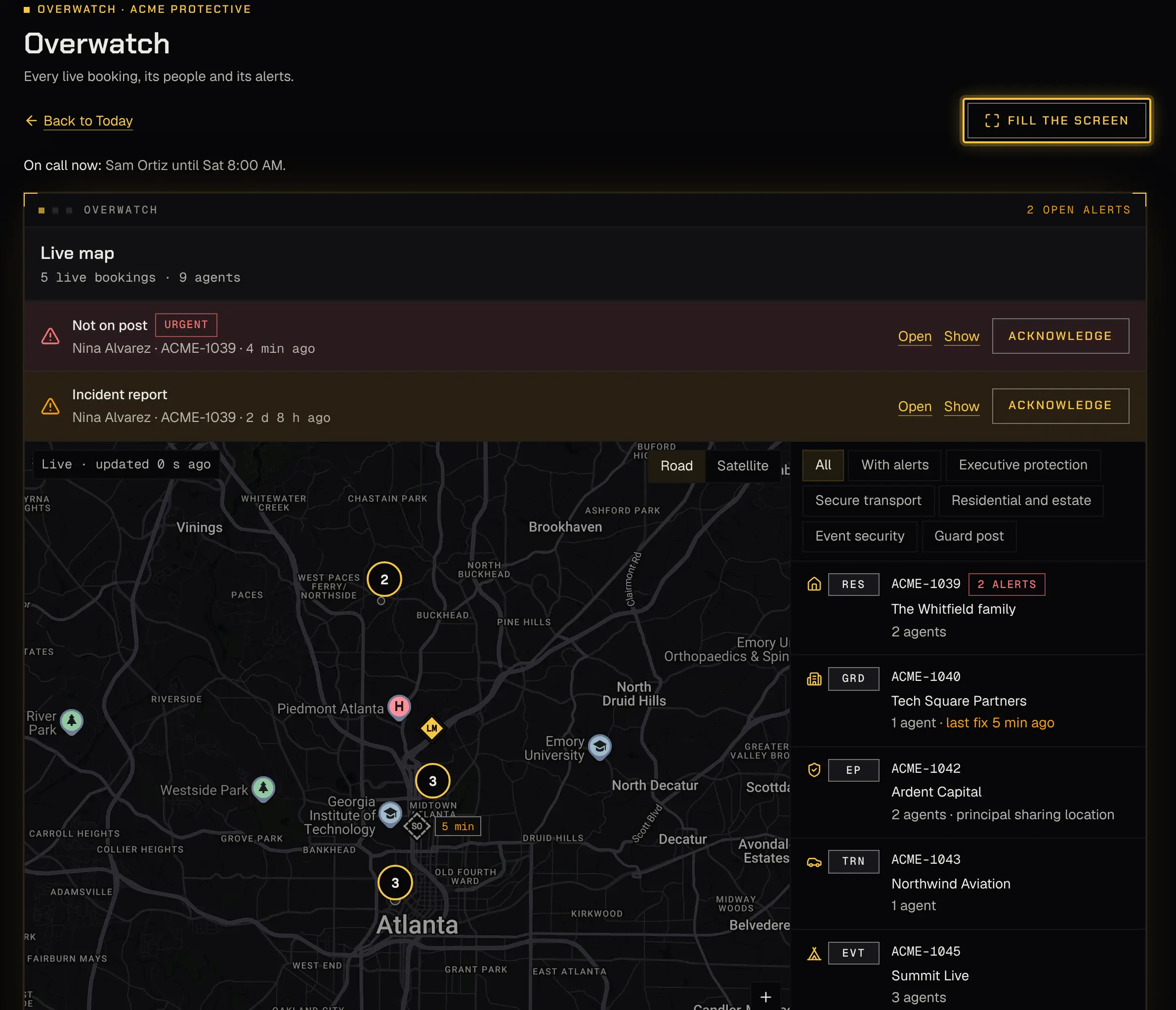
Section titled “The live board”The map shows each live booking’s people and posts. A list beside it names every live booking with its service mark, so everything on the map can be reached without it. Choose All or With alerts to narrow the list.
Select a booking to see its client, principal, alerts and team. Each agent shows a status (On the way, On post, Outside post or On shift), how fresh their position is (“Last fix 4 min ago”; dimmed once it’s no longer recent) and their last check-in. A link opens the booking. Positions come only from “On my way” or clock-in until clock-out.
- Show everyone and Show the whole area fit the map; Zoom in and Zoom out, or the arrow and plus and minus keys, move it.
- Fill the screen makes it full screen for a second monitor; Leave full screen comes back.
- When nothing is live, the map says “Nothing live right now”. A booking appears once an agent taps “On my way” or clocks in.
Alerts
Section titled “Alerts”Open alerts sit in a strip above the map, urgent first, and mark their booking. Urgent alerts are a missed check-in, not on post, lost signal, a late start and an incident report marked urgent. Other alerts, such as overrun and incident reports not marked urgent, are routine. An agent’s request to clock in off post shows here too, for you to approve or decline.
Select an alert to open its detail: the Timeline, The map at the time (where the agent was when it was raised, with the 10 minutes before; if their phone had gone quiet, it says it’s their last known position and when, and that none has come since), Sent to (who it reached and how), Call buttons for the agent, the principal and the key contacts, and the Key places with directions.
- Select Acknowledge first, so everyone on call knows someone has it.
- Then, under Resolve, say What happened, or tick It was a false alarm (the note is then optional), and select Resolve.
A resolved alert leaves the board and becomes a line in its booking’s history. Some alerts close by themselves once what raised them has cleared. Who hears an urgent alert is set by your on-call list. An urgent alert keeps repeating by push and in-app until someone acknowledges it, and it stays open here and on Today until it’s acknowledged.

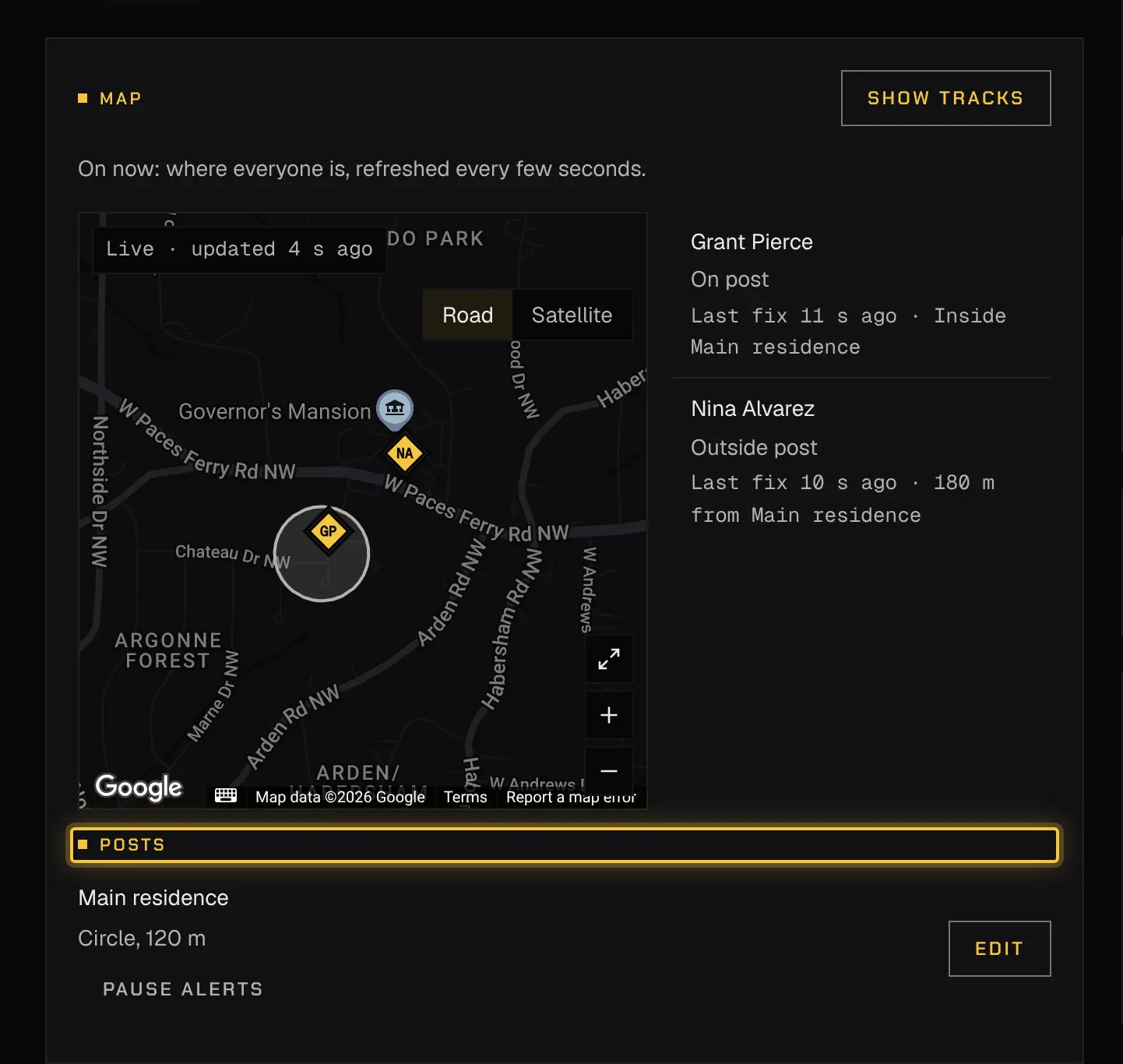
When a booking is confirmed, each of its places is found on the map from its address and becomes a post: a circle at the service type’s radius. The booking’s Map card lists them. Select Edit on one to move it, resize the circle, or Draw an area instead. A place whose address couldn’t be found shows “Not placed”, with a routine alert “Couldn’t place the post: check the address”; place it by hand by tapping the map where it is.
A finished booking’s posts can’t be changed: they’re what its shifts were judged against.
Pausing a post’s alerts
Section titled “Pausing a post’s alerts”When a post raises alerts that aren’t real (poor indoor GPS, for example), select Pause alerts on it, from the booking’s map or the booking’s detail on Overwatch. Give a Reason and select Pause alerts. For that shift only, nobody is alerted when someone is off the post; check-ins, a late start, lost signal and overrun still alert, and the reason goes in the history. Select Turn alerts back on to undo it.
Tracks on a booking
Section titled “Tracks on a booking”Owners, admins and dispatchers can select Show tracks on a booking’s map to see where each agent went during a shift. Tracks are never exported.
Location tracks setting
Section titled “Location tracks setting”Settings › Location tracks sets how long each shift’s track is kept in full: 30 to 365 days, 90 unless you change it. After that, only its key points stay: on my way, clock-in, alerts and clock-out.
- Enter the days under Keep full tracks for (days) and select Save.
- Shortening asks first, because that night older tracks are reduced to key points and it can’t be undone. Select Shorten to N days to go ahead, or Keep N days.
Only the owner and admins change this setting; everyone else sees how long tracks are kept.
Who can do what
Section titled “Who can do what”| Area | Owner | Admin | Dispatcher | Viewer |
|---|---|---|---|---|
| The live map (Overwatch) | Changes | Changes | Changes | No |
| On call | Changes | Changes | Changes | Reads |
Viewers never see positions: Overwatch tells them “Live positions aren’t shown to your role”, and Today lists the live bookings by number instead. If an alert changed while you had it open, you’ll see conflict; reload and look again.
Powered by Shyld