Bookings
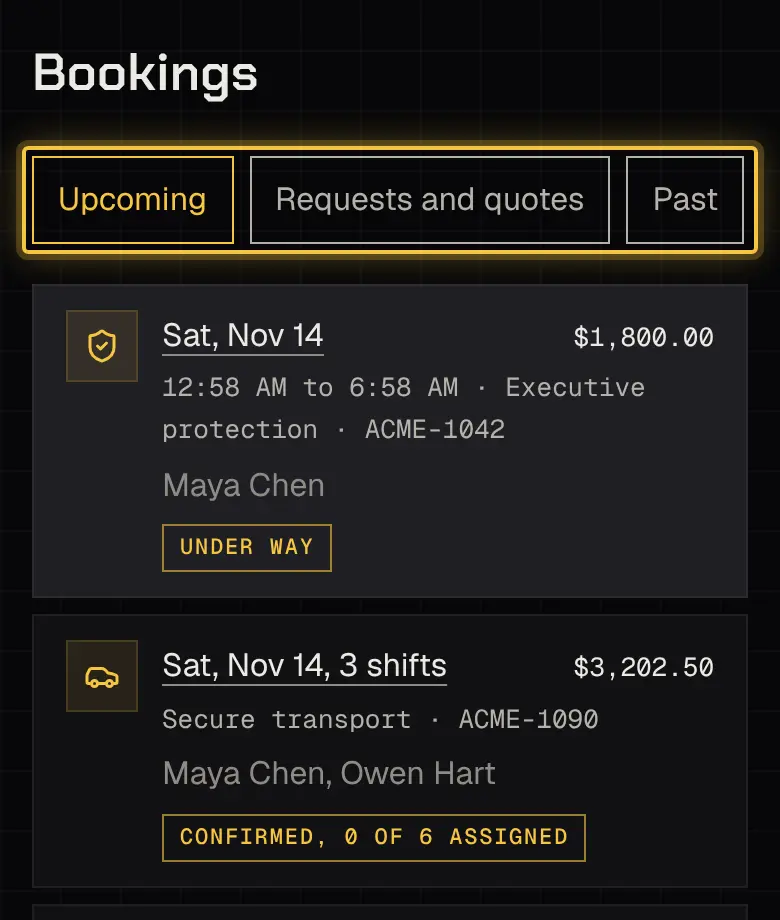
Bookings has three tabs: Upcoming, Requests and quotes and Past.
What each status means
Section titled “What each status means”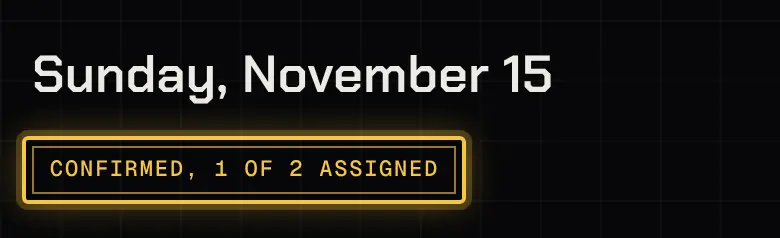
| Status | What it means |
|---|---|
| Request sent | Your security provider is preparing a quote. |
| Quote to answer | A quote waits on you. |
| Quote waiting for approval | A quote waits on a colleague who approves. |
| Approved, waiting for others | You approved; other payers haven’t yet. |
| New version on its way | You asked for a change to a quote and its first shift started before it was answered, so it can’t be approved now. Your security provider sends a new version. |
| Approved, deposit to pay | Pay the deposit to confirm the booking. |
| Approved, deposit clearing | A bank payment is on its way (up to 4 business days). |
| Approved, deposit to pay directly | Pay the deposit to your security provider outside the portal. |
| Change to answer | A change to the booking waits on you. |
| Extra time to answer | Extra time on a shift waits on you. |
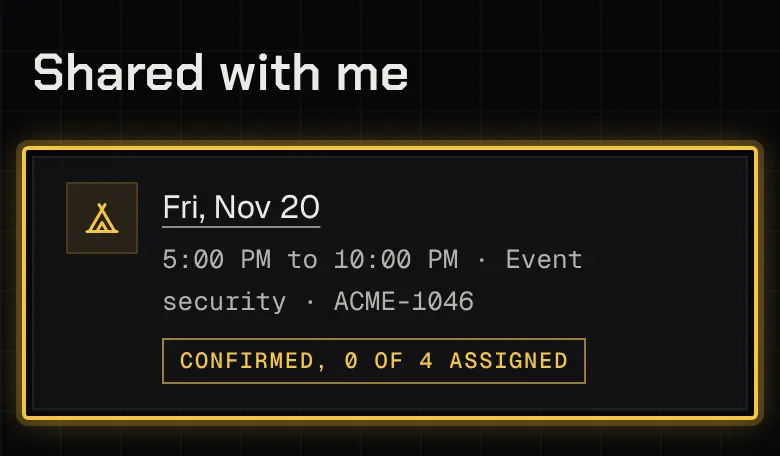
| Confirmed | Booked. It may still say how many agents are assigned so far. |
| On the way | An agent is heading there. |
| Under way | The shift has started. |
| Completed | It’s done. |
| Declined, Withdrawn, Quote expired, Cancelled, Ended, not worked | It ended without being worked; the booking says why. |
Who’s on a shift shows by first name to contacts who can see the live map.
Asking for a change
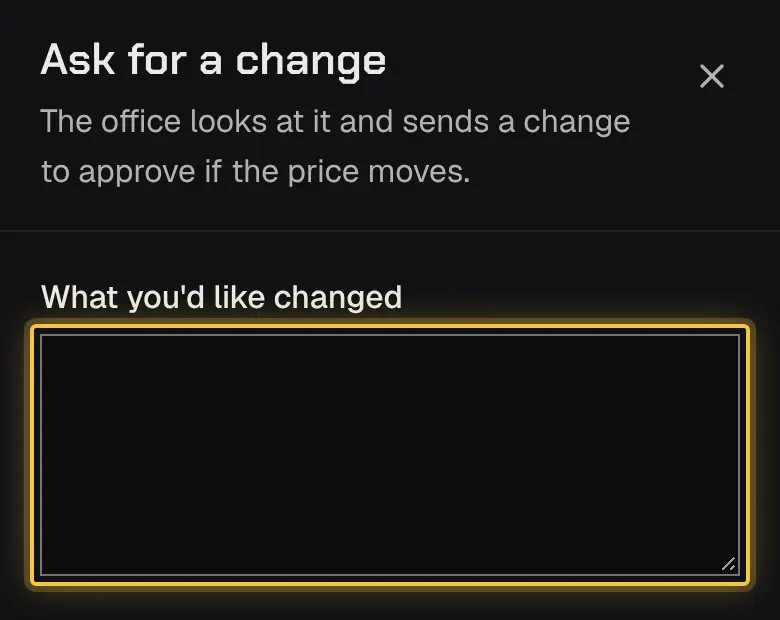
Section titled “Asking for a change”Choose Ask for a change and say what you’d like. If the price moves, your security provider sends a change to approve: it shows each shift before and after. Approve the change or Decline the change (the booking stays as it was). A change lapses at its answer-by time, or when a shift it touches starts. A shift that has started never changes.
Extra time
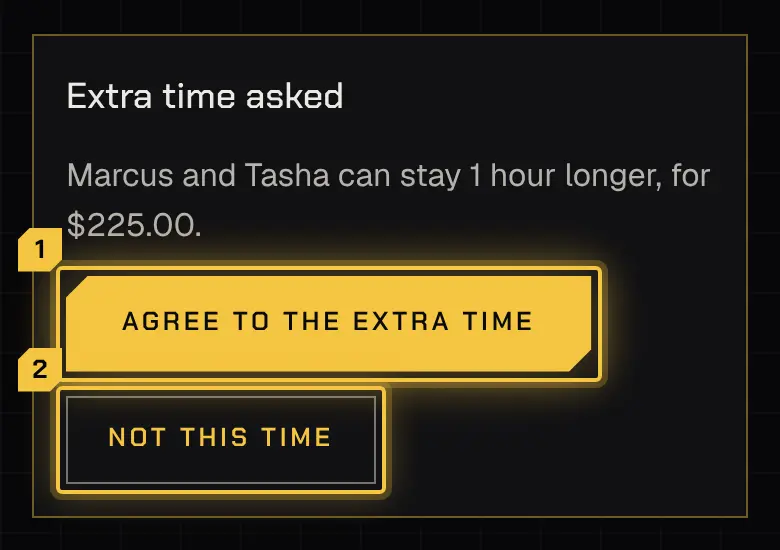
Section titled “Extra time”On the day, your security provider may ask for extra time: who can stay, for how long and the price. Contacts who approve choose Agree to the extra time or Not this time. Extra time comes in 15-minute steps, up to 12 hours past the scheduled end. On a booking several clients pay for, only the clients whose share rises answer it; the others see it, and nothing waits on them.
Cancelling
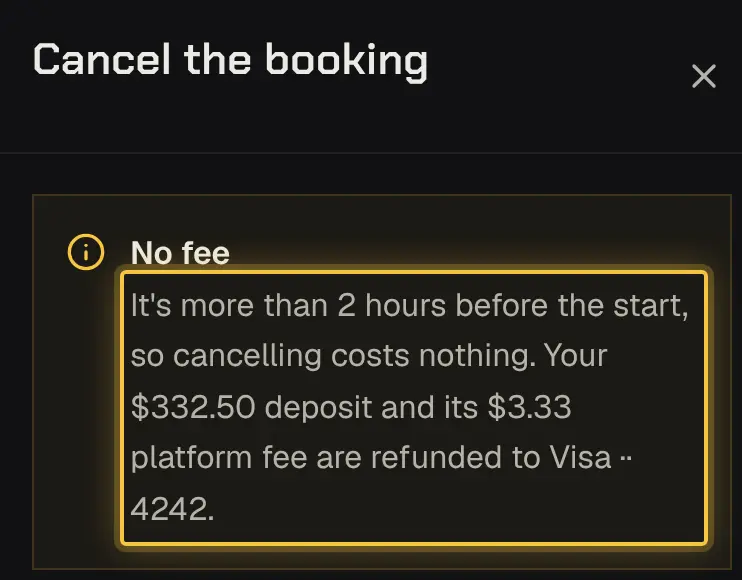
Section titled “Cancelling”Choose Cancel the booking (or Cancel our share on a booking you share), or cancel only some of it: a day, or one shift, that hasn’t started. Any fee shows before you confirm: it’s a share of the shifts that start within the cancellation window, and shifts further out cost nothing. Only cancellations you ask for carry a fee, and your security provider can waive it. A fee you owe is paid in Billing; once it’s paid, the booking says so and asks nothing more. A deposit already paid comes back, less any fee. If your security provider cancels a booking, it says so on the booking, and nothing is owed for it.
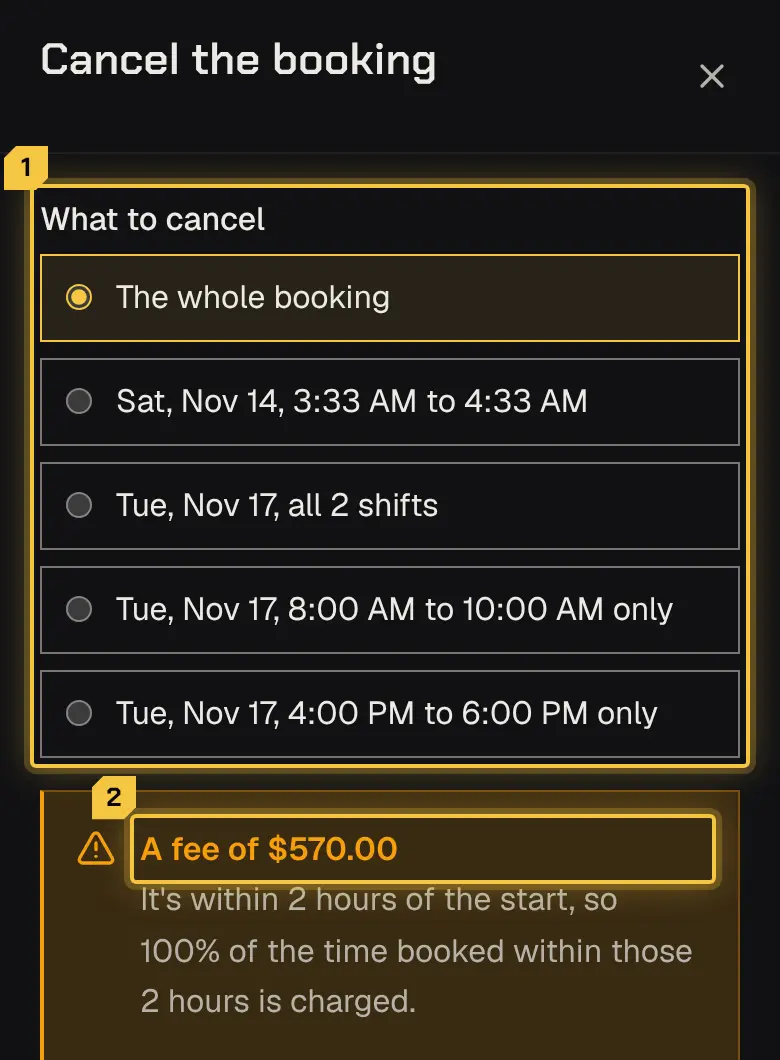
Cancelling a whole booking whose deposit you paid online says where the deposit goes back, and names the platform fee paid with it, which comes back too. With a fee, your security provider works out what comes back of the deposit and tells you.
Reports
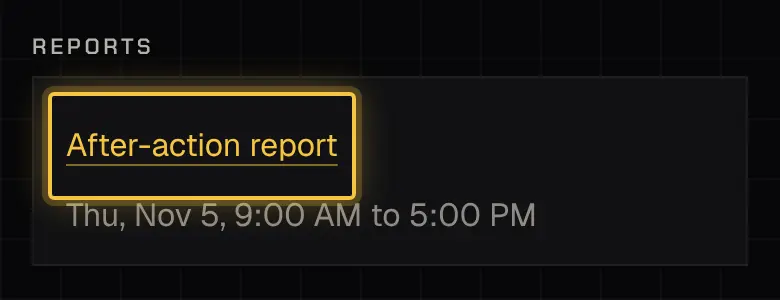
Section titled “Reports”A finished booking lists its Reports and the shared log. Each report shows when it was published and its version, and opens as a PDF.
Rating a booking
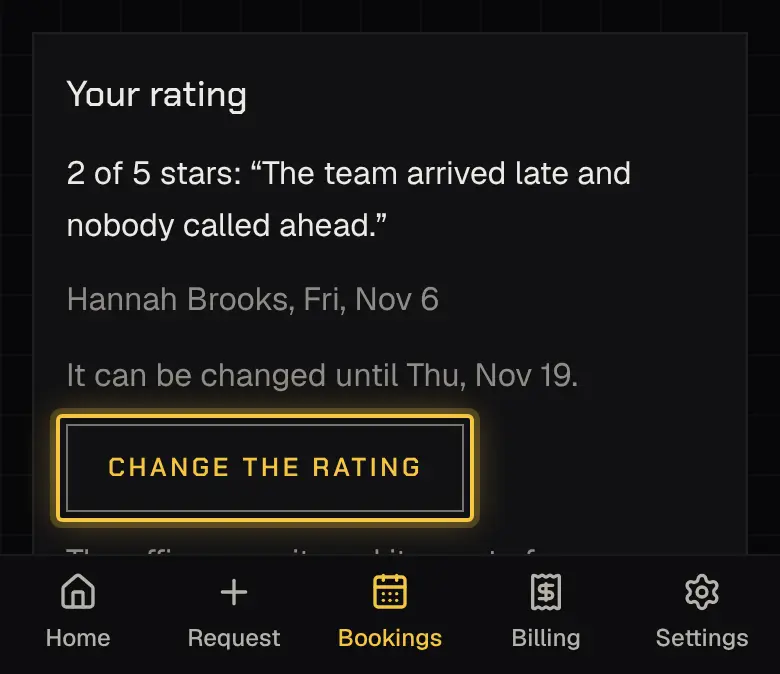
Section titled “Rating a booking”After a booking, contacts who rate can answer How did it go? with 1 to 5 stars and a comment, and change it for 14 days. One rating counts per account.
Book this again
Section titled “Book this again”Book this again opens a new request filled in from this one. Pick the dates; nothing is sent until you send it.

Shared with you
Section titled “Shared with you”When someone adds you as a guest on their booking, it appears under Shared: its schedule, who’s on it and the live map. Its prices and answers stay with them.
Powered by Shyld